
Connect Amazon Bedrock (AWS) to import models into the Model Catalogue and agents into the Agent Catalogue. For general information, see Integrations.
Saidot signs in to AWS with an access key for an IAM user in your AWS account. Optionally, Saidot can assume an IAM role you name, so it works with temporary credentials.
Before you start
You need these four values. Set them up in AWS first (steps below).
|
Field in Saidot |
Required |
What it is |
|---|---|---|
|
Access key ID |
Yes |
The access key ID of an IAM user Saidot signs in as |
|
Secret access key |
Yes |
The secret that belongs to that access key. Shown only once, when you create the key |
|
Region name |
Yes |
The AWS Region where your Bedrock models and agents are, for example |
|
Role ARN |
No |
An IAM role Saidot assumes for temporary credentials, for example |
Set up access in AWS
Step 1. Create an IAM user for Saidot
In the AWS Console, go to IAM → Users → Create user. Name it, for example, saidot-bedrock-reader. It does not need console access.
Use a dedicated user for Saidot, so you can track and revoke its access on its own.
Step 2. Give read-only access to Amazon Bedrock
Attach a policy that lets Saidot read your Bedrock models and agents, either to the IAM user (no role) or to the role (with Role ARN).
-
Simplest: attach the AWS managed policy AmazonBedrockReadOnly.
-
Least privilege: (custom policy with the exact Bedrock list and get actions Saidot calls – to add).
Step 3. Create an access key
Open the user, go to Security credentials → Create access key and choose Third-party service. Copy the Access key ID and Secret access key. You cannot view the secret again later.
AWS guide: Manage access keys for IAM users.
Step 4 (optional). Set up a role for temporary credentials
Use a role if your organization does not allow long-lived keys to have direct permissions, or if you want Saidot's permissions on the role rather than the user.
-
Create an IAM role with the read-only policy from step 2.
-
In the role's Trust relationships, allow the IAM user from step 1 to assume the role.
-
Give the IAM user permission to call
sts:AssumeRoleon that role. -
Copy the role's ARN.
AWS guide: Use an IAM role to grant permissions.
Connect in Saidot
-
Go to Integrations in your Space and select Connect on Amazon Bedrock.
-
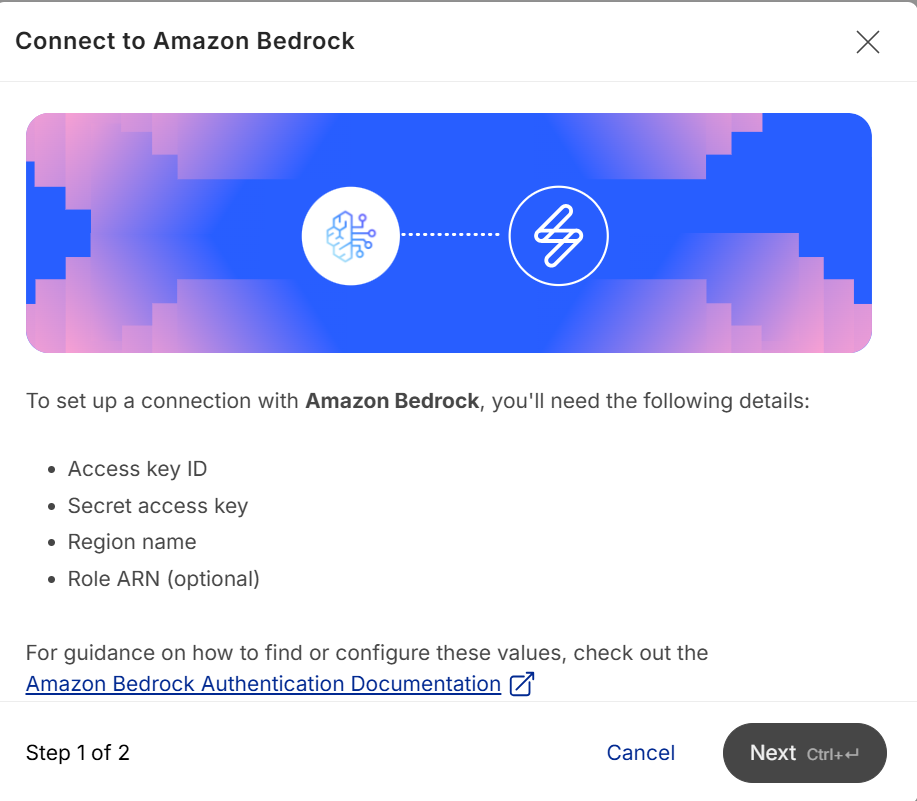
Check the list of details you need and select Next.
-
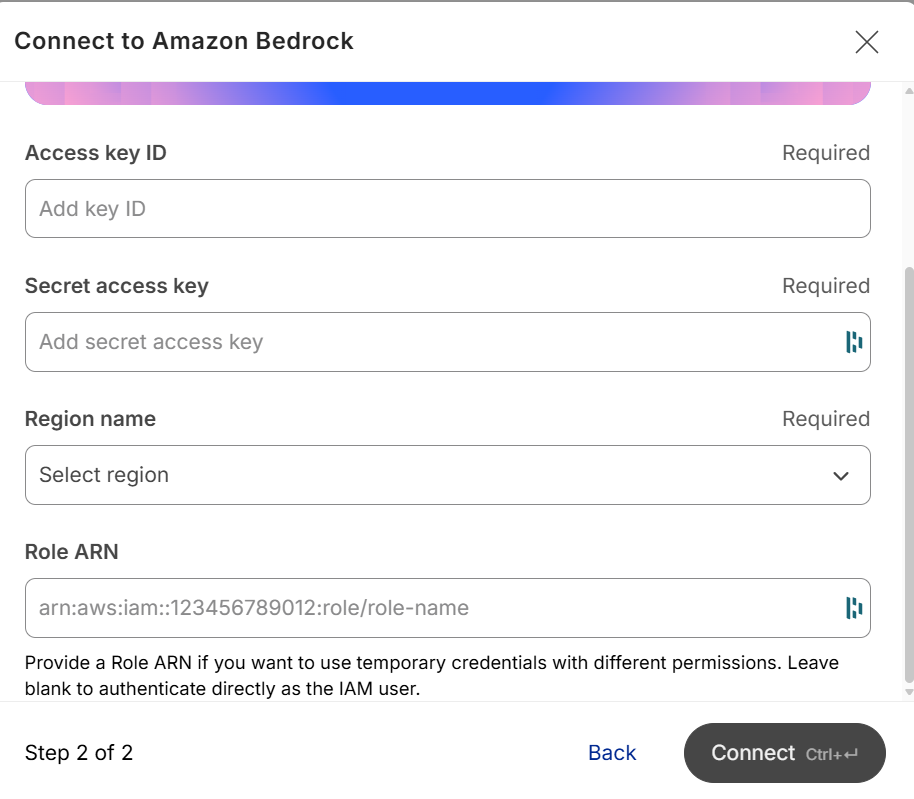
Enter the Access key ID, Secret access key and Region name. Add a Role ARN if you set one up in step 4.
-
Select Connect.
Next: import models and agents – see Integrations.
Revoke access
In AWS, deactivate or delete the IAM user's access key (IAM → Users → Security credentials). If you use a role, you can also remove the user from the role's trust policy.