
Saidot Control Catalogue enables organisations to
-
Maintain a catalogue of their organisation specific Controls
-
Enforce these Controls to different items in Saidot Governance including Systems, Models, Agents and Datasets, using Policy and Risk connectivity
-
Save default evidence to Controls
-
Batch edit controls across multiple systems at once
-
Manage structured evidence directly on controls
-
Follow the progress of Control coverage
Overview
Navigate to Governance → [Your Space] → Controls to access the Control Catalogue.
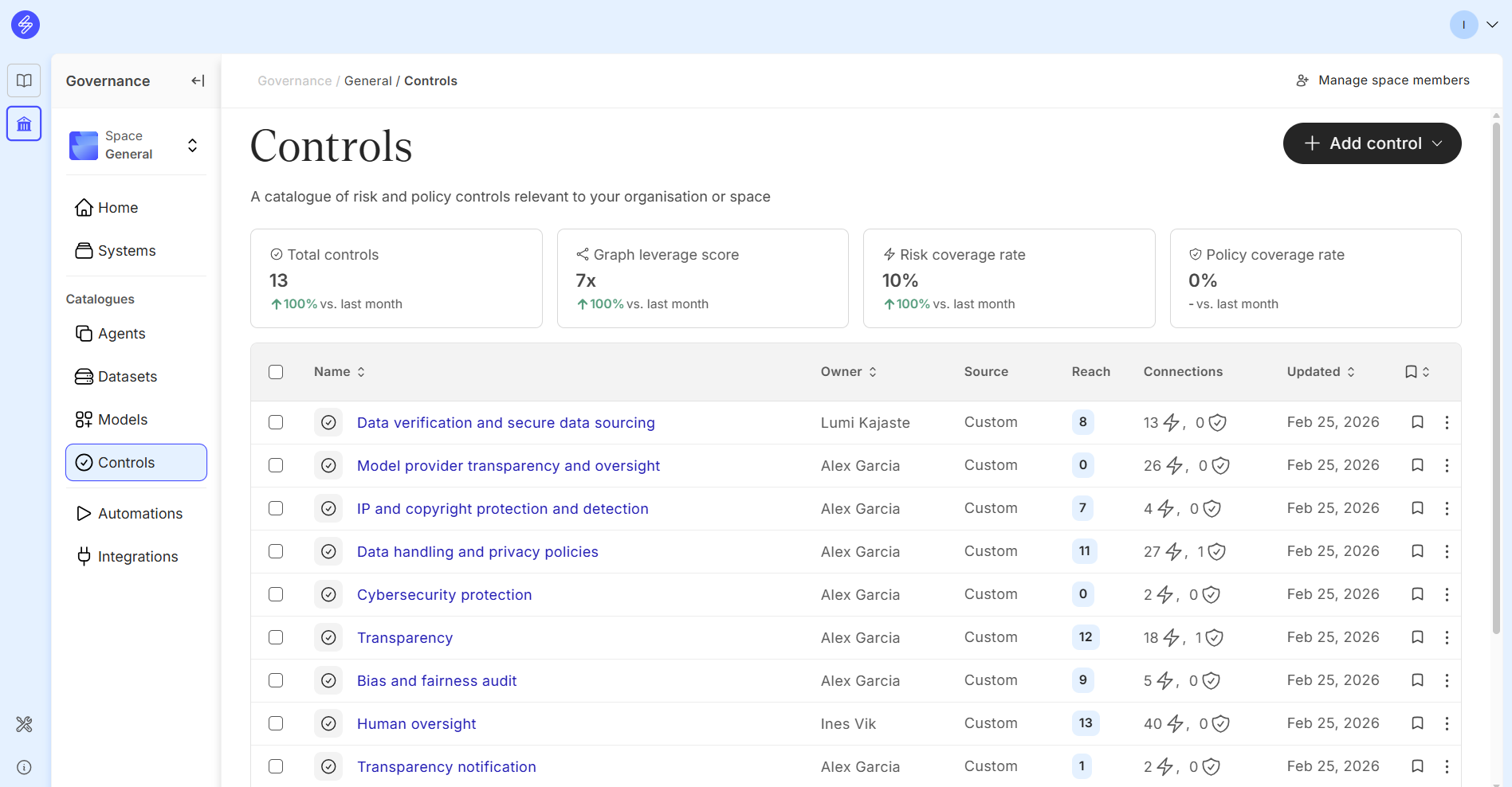
The catalogue header displays four key metrics:
|
Metric |
What it tells you |
|---|---|
|
Total controls |
Number of controls currently in the catalogue, with month-over-month change |
|
Graph leverage score |
How effectively your controls are connected across risks and systems (multiplier) |
|
Risk coverage rate |
Percentage of documented system risks that have at least one linked control |
|
Policy coverage rate |
Percentage of policy requirements covered by at least one linked control |
These metrics help you understand whether your control set is comprehensive and whether it is being actively used for governance.
The controls list
Each control appears as a row in the catalogue table with the following columns:
-
Name — the control title, clickable to open the control detail panel
-
Owner — the person accountable for this control
-
Source — either Custom (created by your organisation) or Saidot library (imported from the curated library)
-
Reach — the number of AI systems this control is linked to
-
Connections — the number of linked risks and linked policies associated with this control
-
Updated — the date the control record was last modified
Adding controls
Click + Add control in the top right. Two options are available:
Select from Saidot library
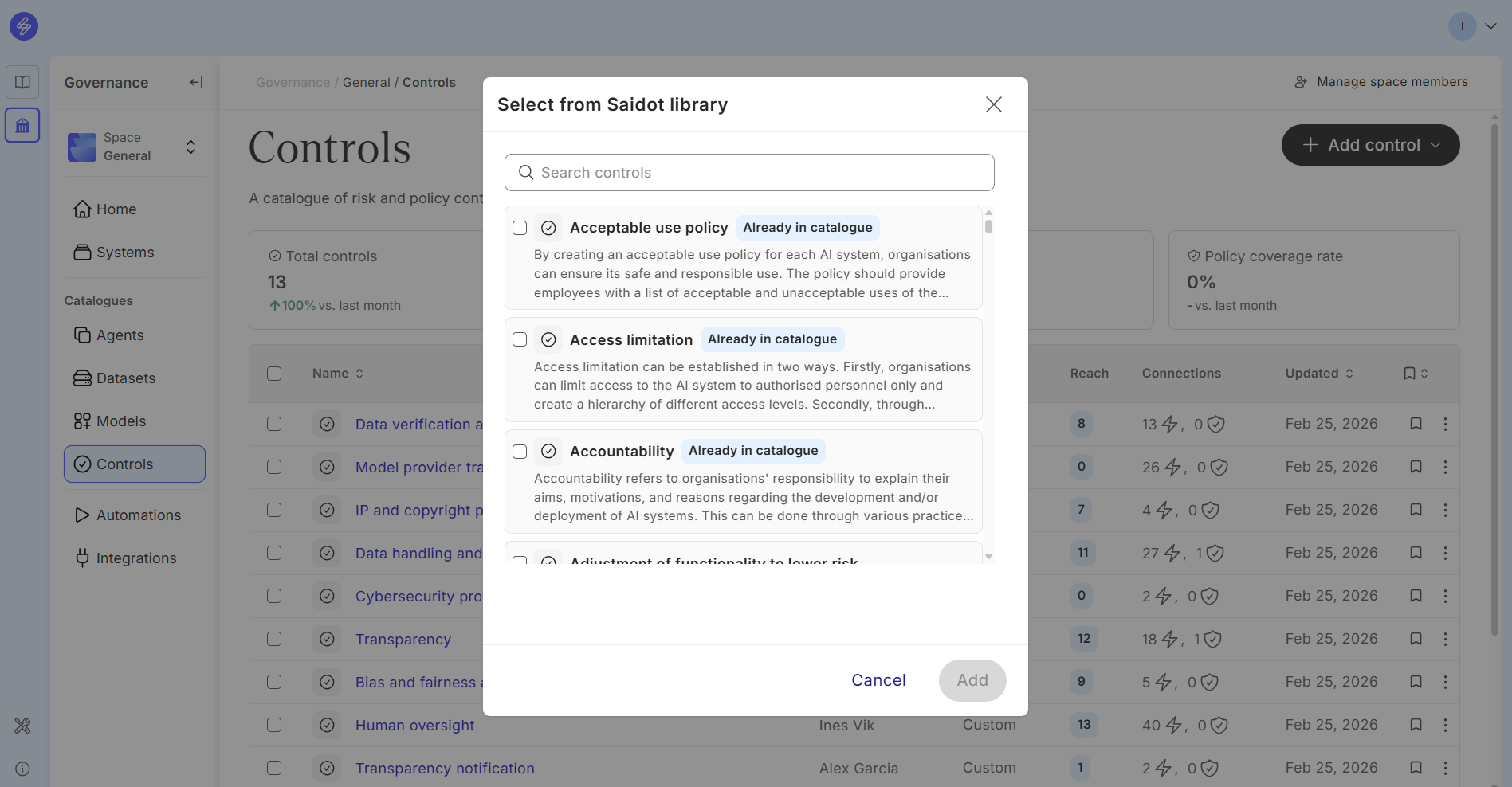
Opens a searchable modal showing all controls curated by Saidot. Each library control includes a description so you can quickly evaluate its relevance. Controls already present in your catalogue are labelled Already in catalogue.
Select one or more controls and click Add to import them. Library controls are pre-populated with descriptions and come with pre-existing links to relevant risks from the Saidot knowledge graph, giving you immediate risk coverage without manual configuration.
Create custom control
Use this option when a control is specific to your organisation and not available in the Saidot library. You will fill in all fields manually (see Control fields below).
Batch editing controls
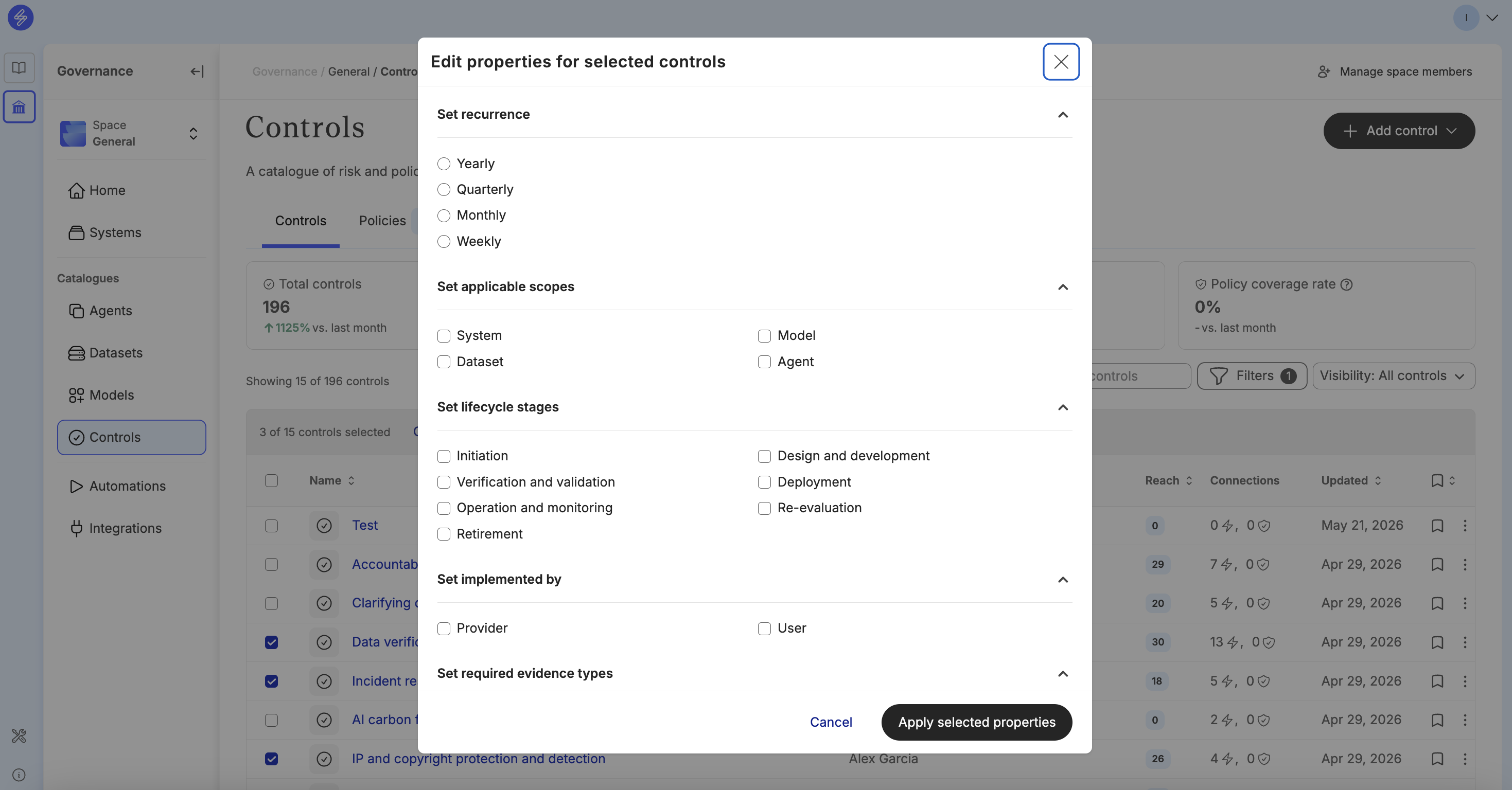
When you need to apply the same change to multiple controls simultaneously — such as updating the owner, lifecycle stage, status, or due date — you can use batch edit instead of opening each control individually.
To batch edit controls:
-
Select the checkboxes next to the controls you want to update in the catalogue list.
-
Click the Edit selected button that appears in the action bar.
-
Choose the field you want to update and set the new value. The change will be applied to all selected controls at once.
Time-saving tip: Batch editing is especially useful after importing a set of library controls, when you want to assign an owner or set an initial status across all newly added controls in one step.
Control fields
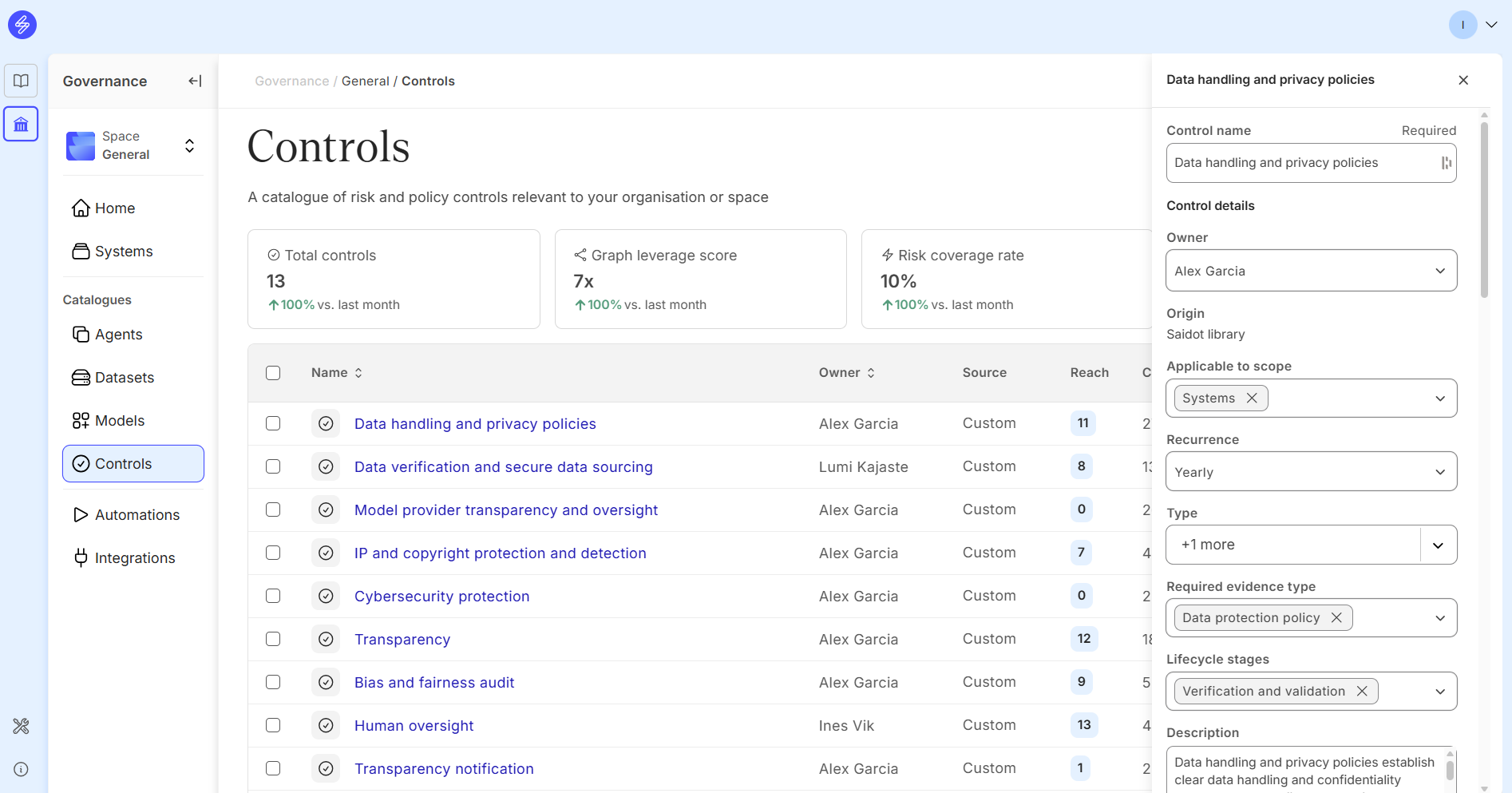
Clicking any control name opens a detail panel on the right side of the screen. The following fields are available:
|
Field |
Required |
Description |
|---|---|---|
|
Control name |
Yes |
A clear, action-oriented title describing the measure |
|
Owner |
No |
The person or role accountable for implementing and maintaining this control |
|
Origin |
— |
Read-only. Shows whether the control comes from the Saidot library or was created as Custom |
|
Applicable to scope |
No |
The entity types this control applies to (e.g. Systems). Used to filter and surface controls contextually |
|
Recurrence |
No |
How frequently this control should be reviewed or performed |
|
Type |
No |
Category of control (e.g. Risk, Data) |
|
Required evidence type |
No |
The type of documentation required to demonstrate this control is in place |
|
Lifecycle stages |
No |
The AI system lifecycle phases where this control is relevant (e.g. Verification and validation, Deployment) |
|
Description |
No |
A detailed explanation of what the control involves and how it should be implemented |
Linking controls to policies and risks
A control becomes most valuable when it is connected to the risks it mitigates and the policy requirements it satisfies.
Linked policies
In the control detail panel, the Linked policies section shows which regulatory frameworks or internal policies this control supports (for example, GDPR). Click Link policy to associate additional policies with the control.
Linked risks
The Linked risks section shows all risks this control helps mitigate. A single control can be linked to many risks — this is the primary mechanism for improving your Risk coverage rate. Click Link risk to add connections. Risks are shown with their severity indicator (colour-coded icon) so you can quickly assess the control's impact.
Tip: A high Graph leverage score indicates that individual controls are connected to many risks and systems, maximising governance efficiency. Aim to reuse controls across systems rather than creating duplicate records.
Default evidence
Each control can store default evidence — documents that substantiate the control is in place. These are visible in the control detail panel under Default evidence.
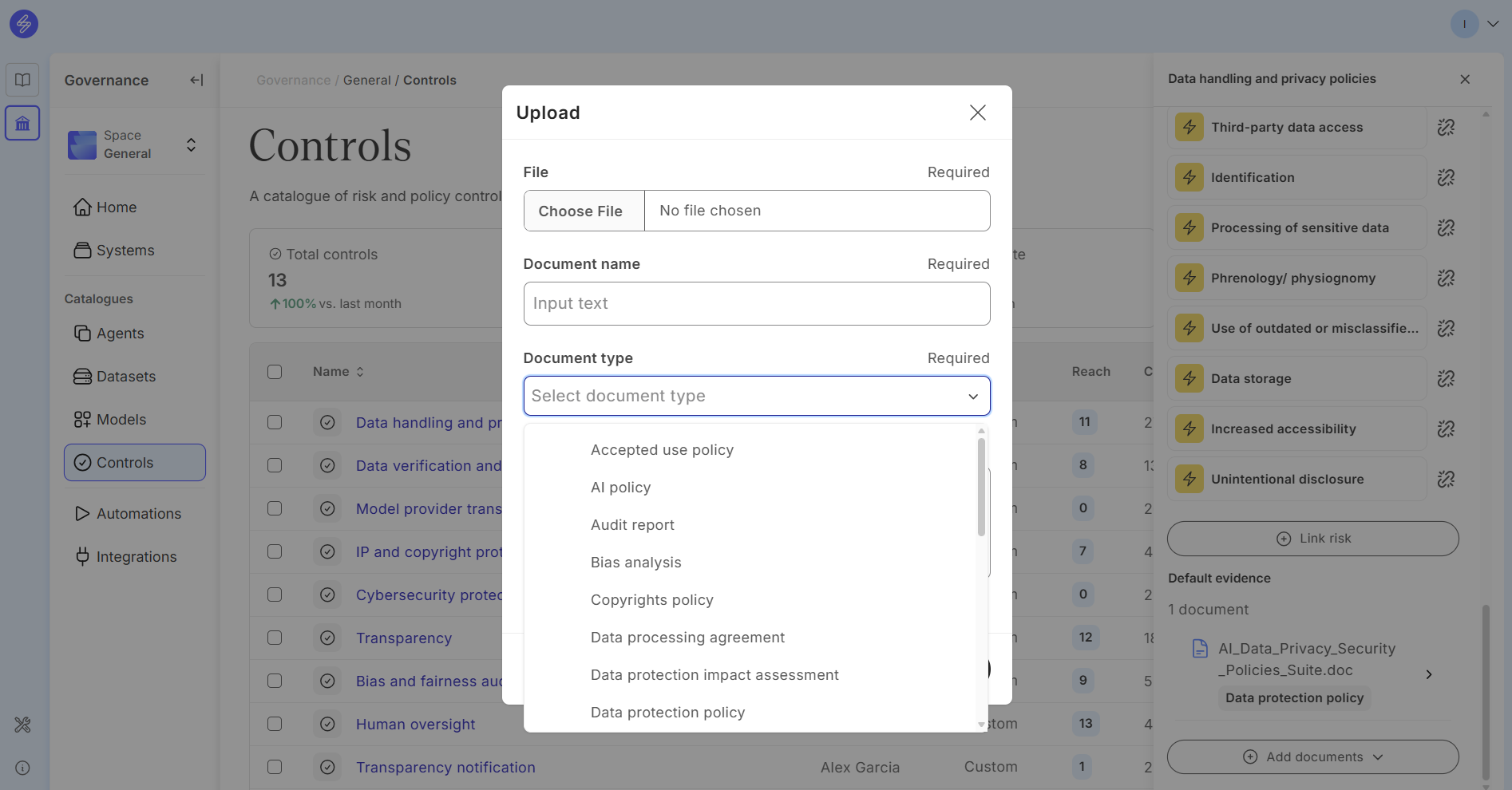
To add a document, click Add documents and select Upload. The upload dialog requires:
-
File (required) — the document to attach
-
Document name (required) — a clear label for the file
-
Document type (required) — the category of evidence (e.g. Data protection policy, Technical documentation)
-
Description (optional) — additional context about the document (max 150 characters)
Uploaded evidence is stored against the control and will be visible wherever the control is used across systems.
Evidence on controls
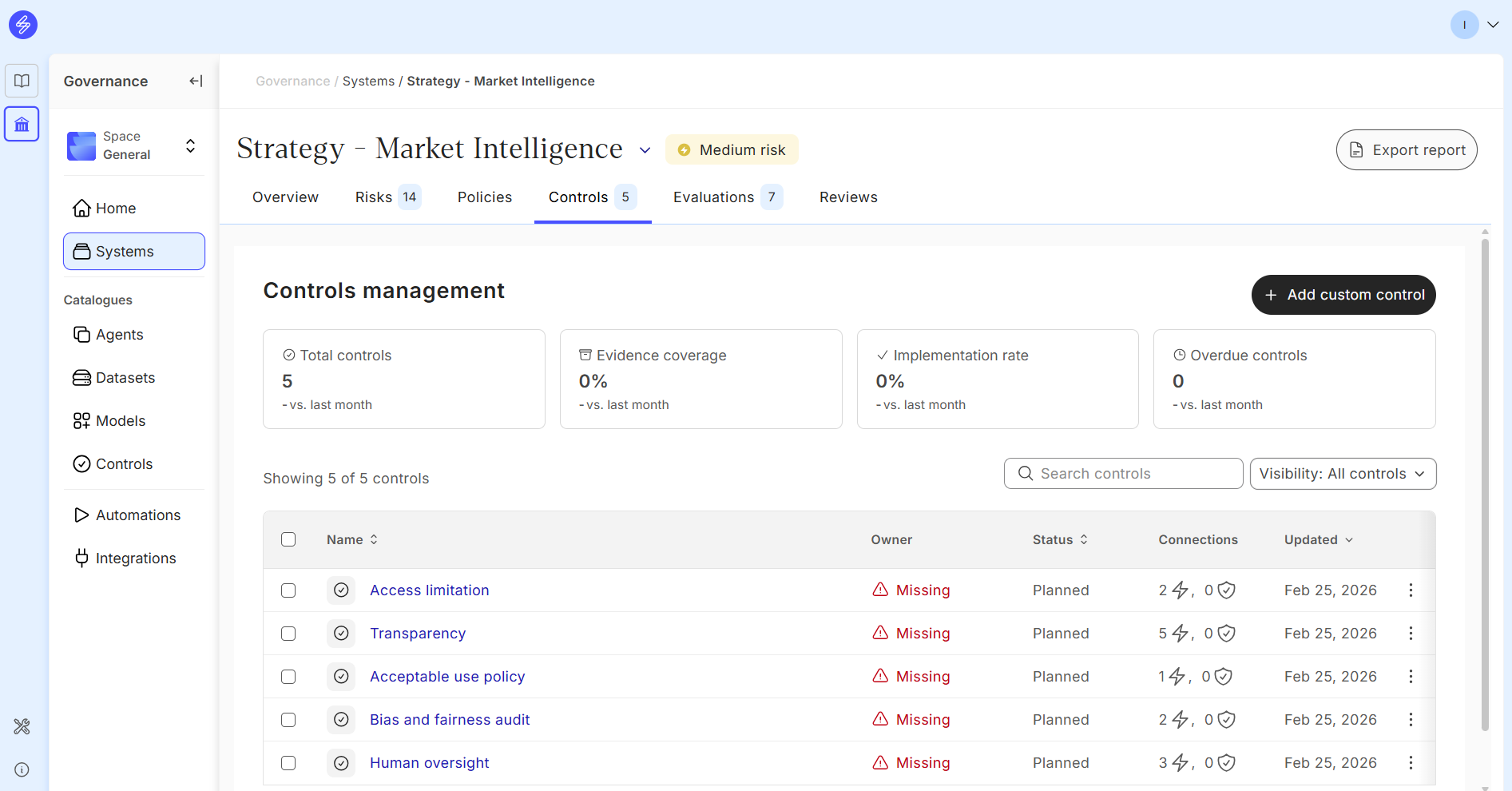
In addition to the default evidence stored at the catalogue level, controls used within a system's risk management workflow now support system-level evidence. When reviewing a control on a specific AI system, users can attach evidence that is relevant to that particular deployment context — separate from the default evidence that applies globally to the control.
Evidence can be added by:
-
Uploading a file — attach a document directly (e.g. a test report, audit log, or policy document)
-
Adding a link — reference an external document or tool URL
Both types of evidence are shown in the control card within the system's Controls tab, providing a clear audit trail for each control implementation.
Default evidence vs. system evidence: Default evidence is set at the catalogue level and acts as a template that applies wherever the control is used. System-level evidence is specific to one system and captures how the control has been implemented in that particular context. Both are visible together in the control card.
Custom controls vs. Saidot library controls
|
|
Custom control |
Saidot library control |
|---|---|---|
|
Created by |
Your organisation |
Saidot |
|
Description |
Filled in manually |
Pre-populated |
|
Risk links |
Added manually |
Pre-linked to relevant risks |
|
Editable |
Fully |
Name and description editable; origin is read-only |
|
Source label |
Custom |
Saidot library |
Where a Saidot library control matches your needs, prefer importing it over creating a custom one. Library controls inherit curated risk connections and reduce the configuration effort required to achieve meaningful risk coverage.
Manage System level controls
When Risks are identified on a System level, either through Inheritance from Components, or through Risk Recommendations, the Controls linked to these risks will be automatically populated to the Systems Control Tab. The default Evidence will be saved to the Controls. The Controls will have a default status as Planned. After this, the user who is assigned to manage the Controls, can start to assign the Control, manage the status and upload additional Evidence.
Policies tab (Preview)
The Policies tab on the Control Catalogue provides a consolidated view of all policy requirements that your controls are mapped against. This feature is currently in Preview.
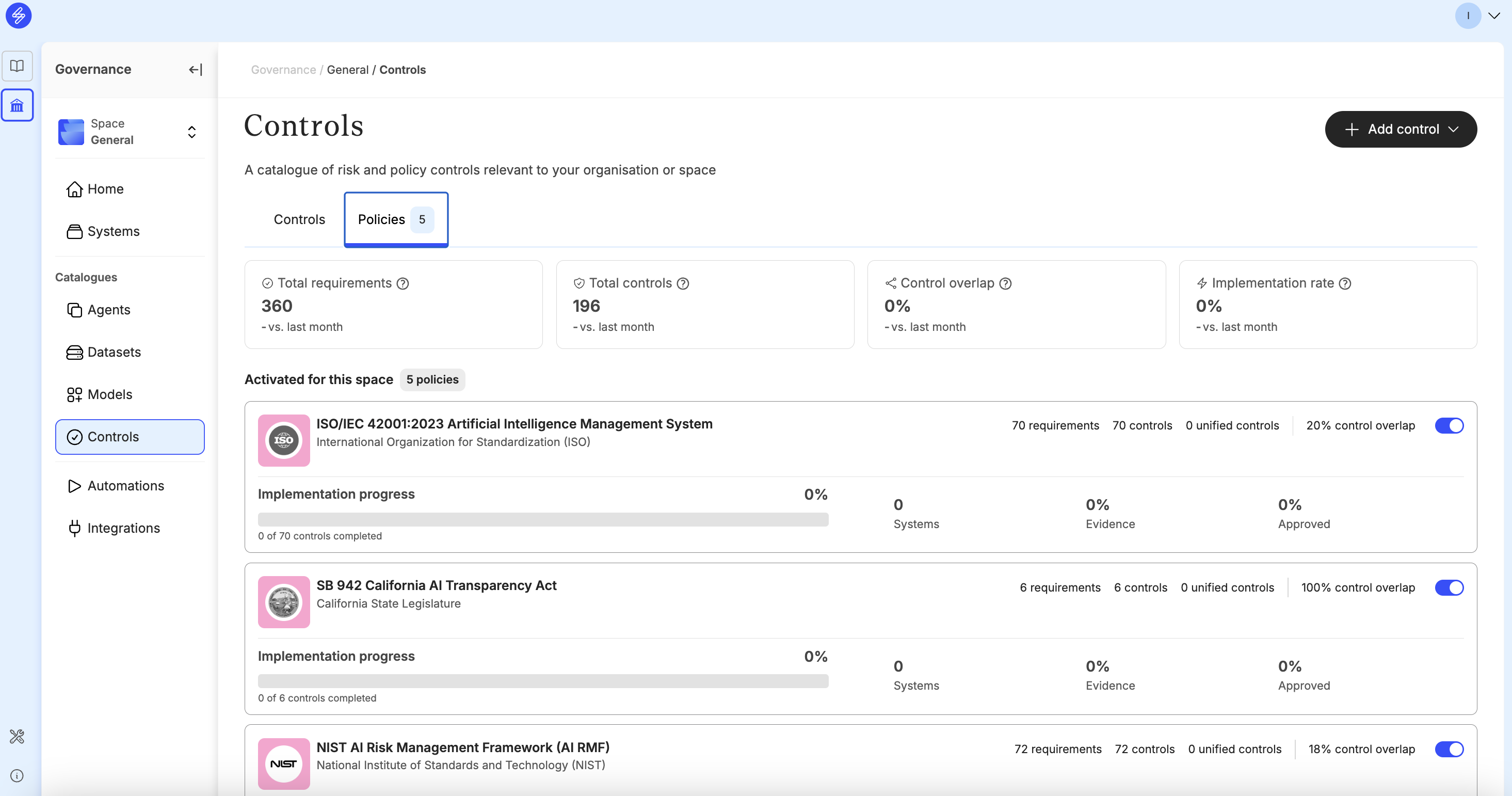
From the Policies tab you can:
-
Browse all active policies and their associated requirements
-
See which controls are already linked to each requirement
-
Identify policy requirements that have no control coverage — helping close compliance gaps proactively
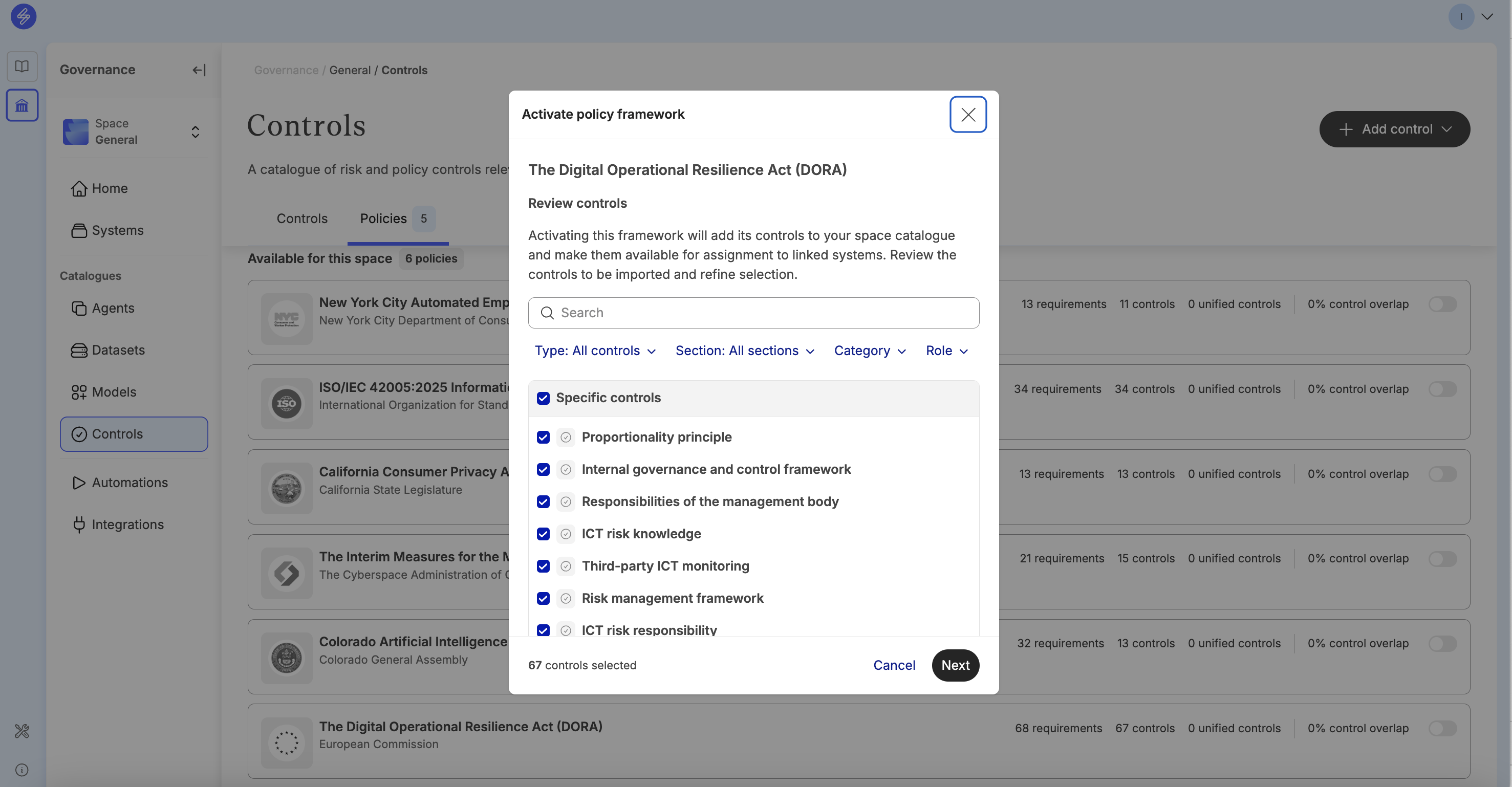
The Policies tab works in conjunction with the Policy Editor (also in Preview), which allows Admins to create and manage policy frameworks and map their requirements to controls. Together these features provide an end-to-end workflow from policy authoring to control assignment and coverage tracking.
Preview feature: The Policies tab and Policy Editor are currently in Preview. Functionality may change based on feedback. Contact your Saidot Customer Success Manager to get access.