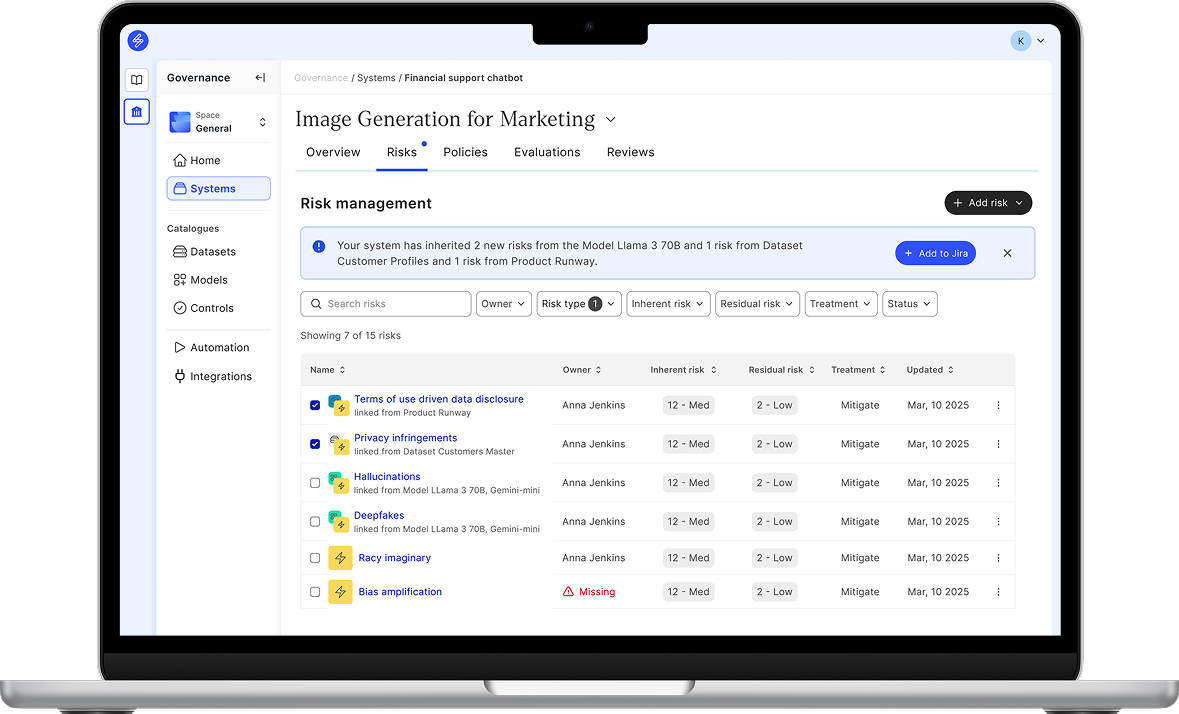
This guideline will help you to activate and use Model Catalogue. Model Catalogue is a company-specific catalogue for the models that are developed and finetuned in AI/ML Development and MLOps platforms. Currently Saidot support integration and governance of models developed in Microsoft Azure Machine Learning, Azure AI Services and Azure OpenAI Services.
The Model Catalogue offers Data Scientists and AI developer possibility to govern their ML & AI models at Saidot by
-
Integrate to ML & AI development or MLOps platform to govern models at Saidot
-
Import models through integration, including basic model metadata
-
Add model specific governance information including description of performance, limitations, allowed and not allowed use.
-
Manage links to systems, datasets and model specific risks
Activate Model Catalogue through integrations
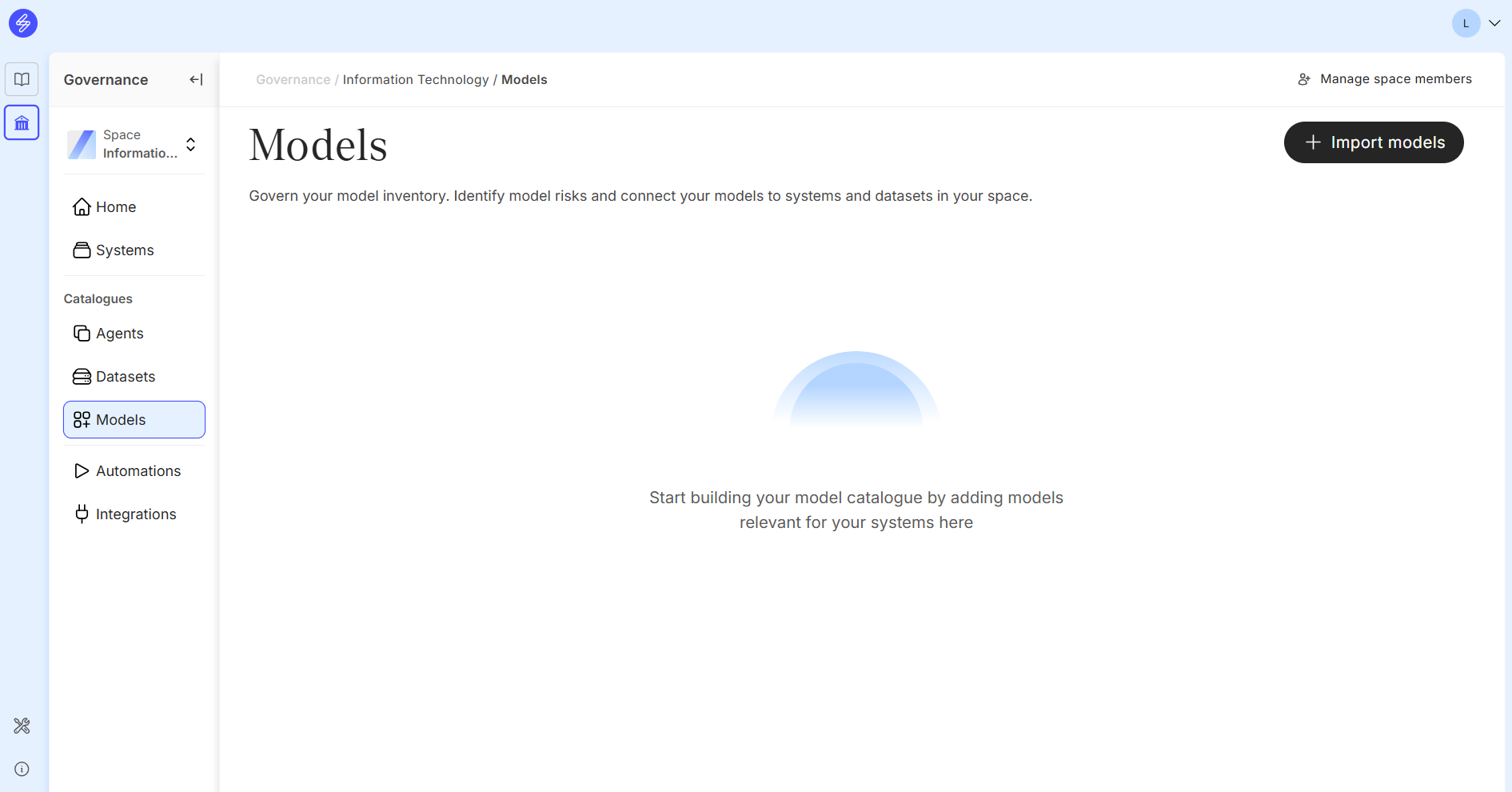
Saidot Azure integrations are enabled by Admins using Admin interface before they can be enabled in Integrations. Other integrations are activated directly in Integrations. Please visit the Integration guideline for further information on activating your Model catalogue.
If your organisation Saidot Admins and Space Managers have not created integrations for Model catalogue, it will be empty.
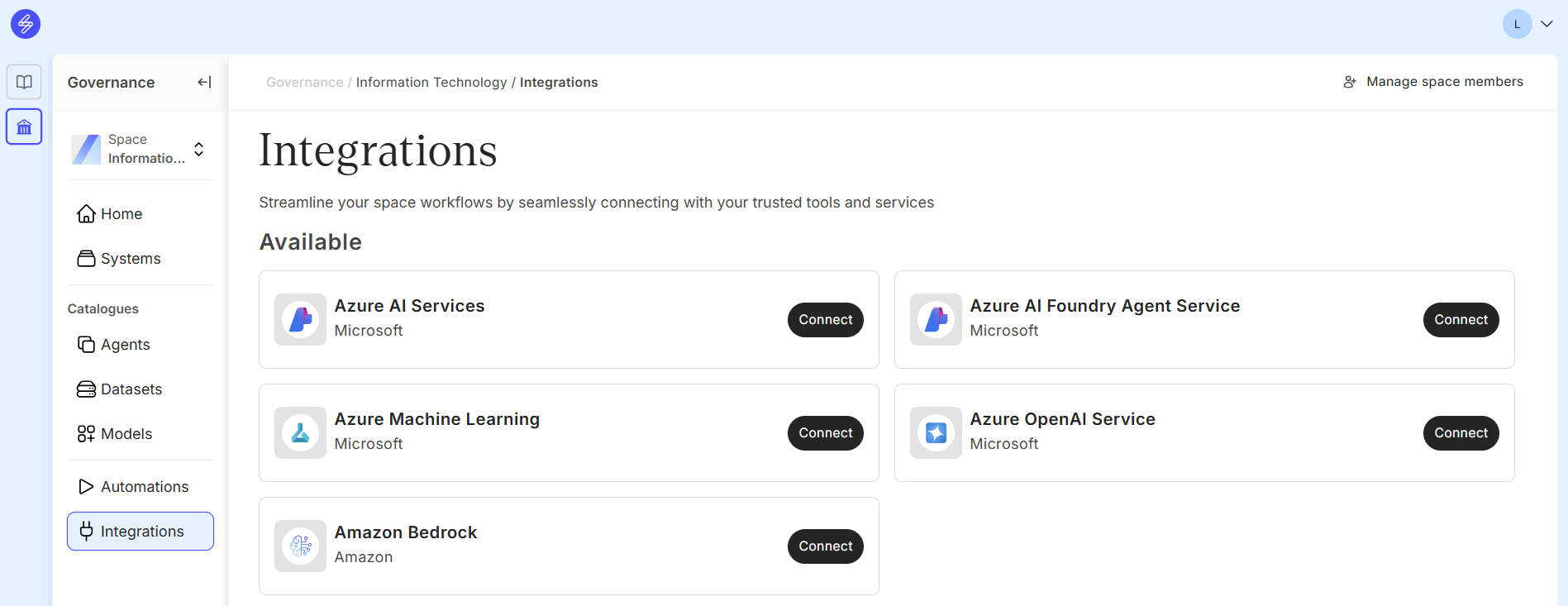
The integration view contains information about available in-built integrations to your ML/AI development platforms. In addition to these integrations, Saidot allows to integrate the model data also through an API as an integrated workflow.
Model Catalogue
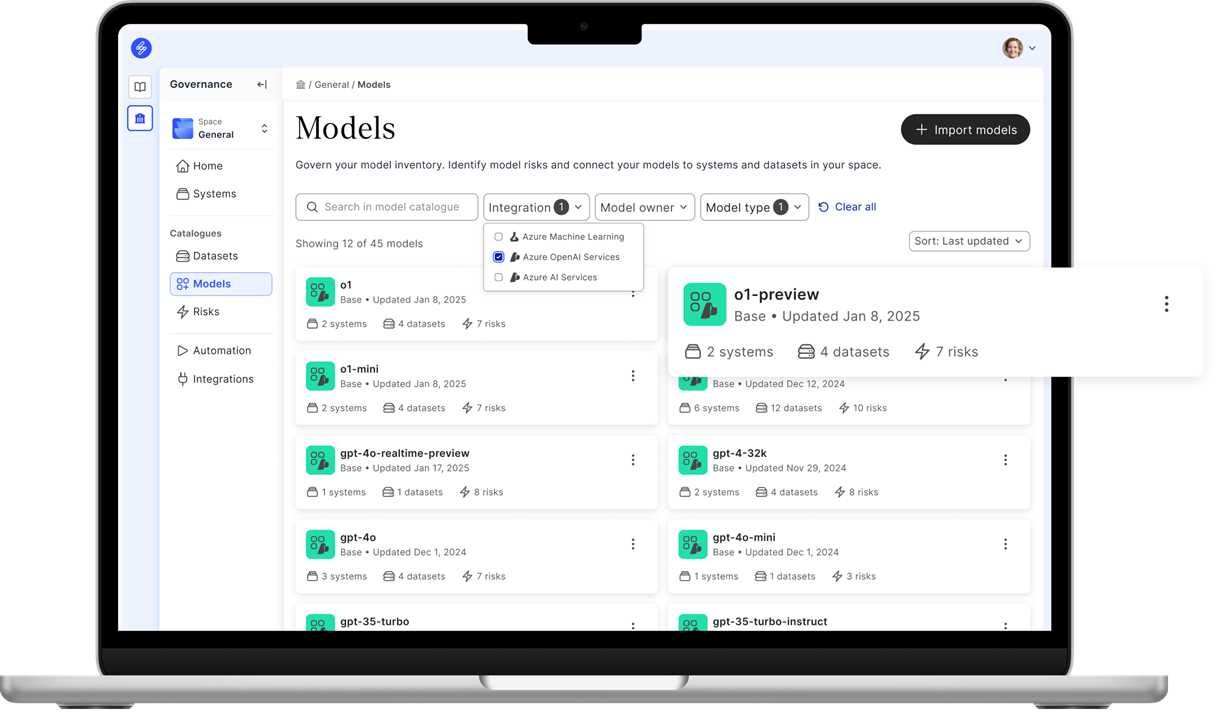
After successful integration, models from Azure OpenAI Service, Azure AI Services and Azure Machine Learning can be imported and governed at Saidot.
Step 1. Import models
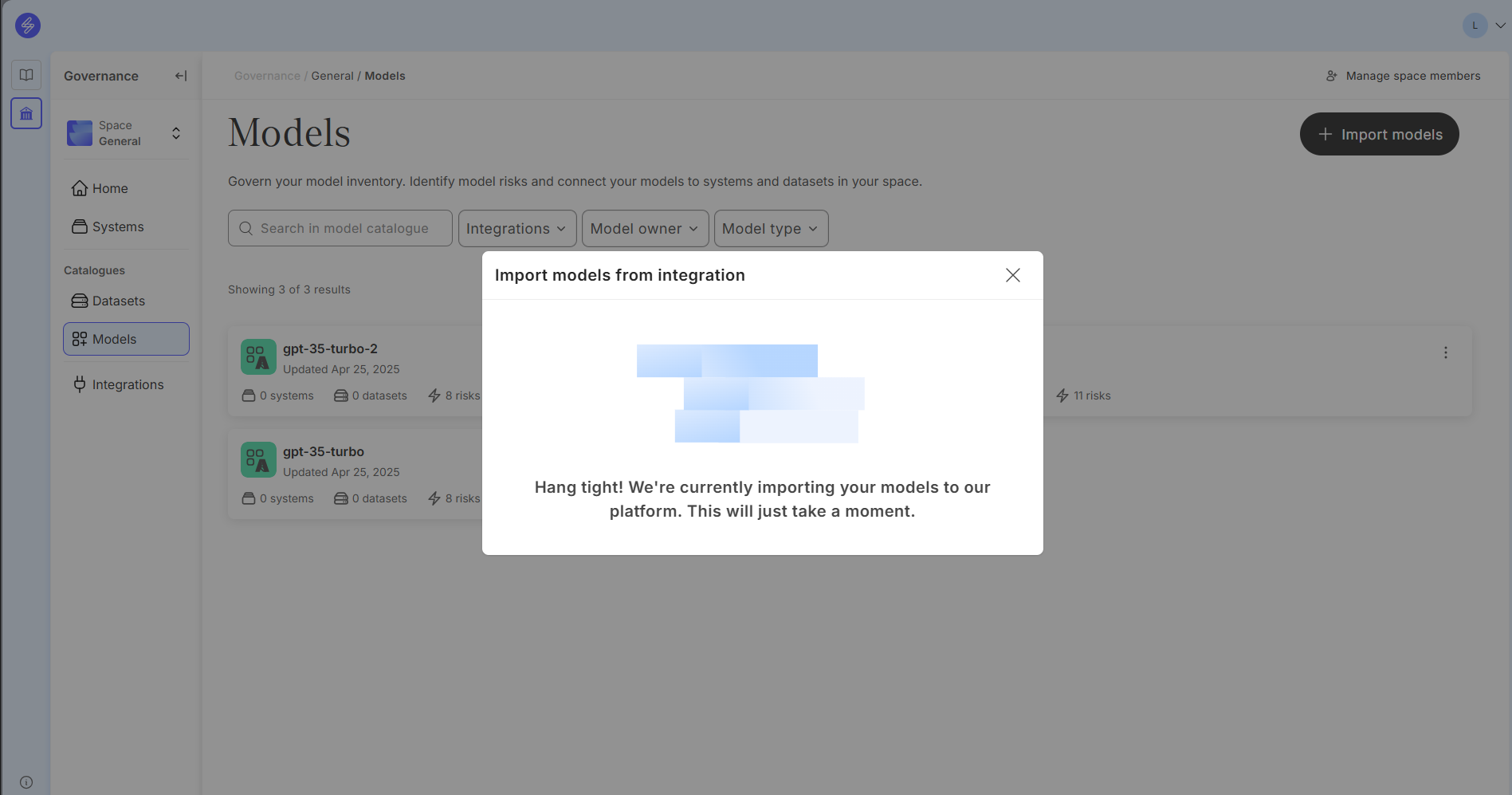
Start the model import by selecting Models and Import Models. Wait for Saidot to get the models to be imported from Azure. This might take a couple of minutes.
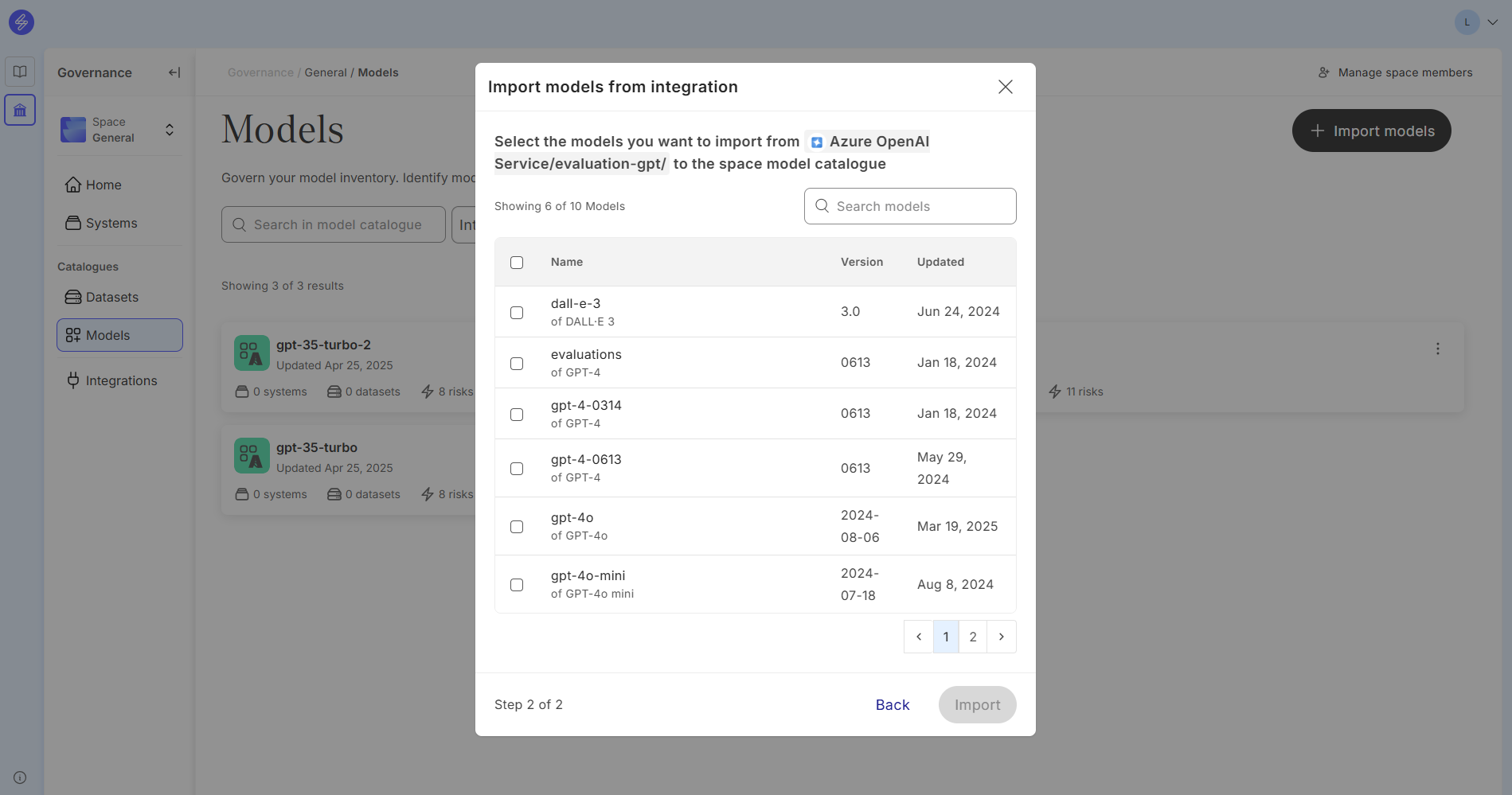
Select the models to be imported to the Model Catalogue.
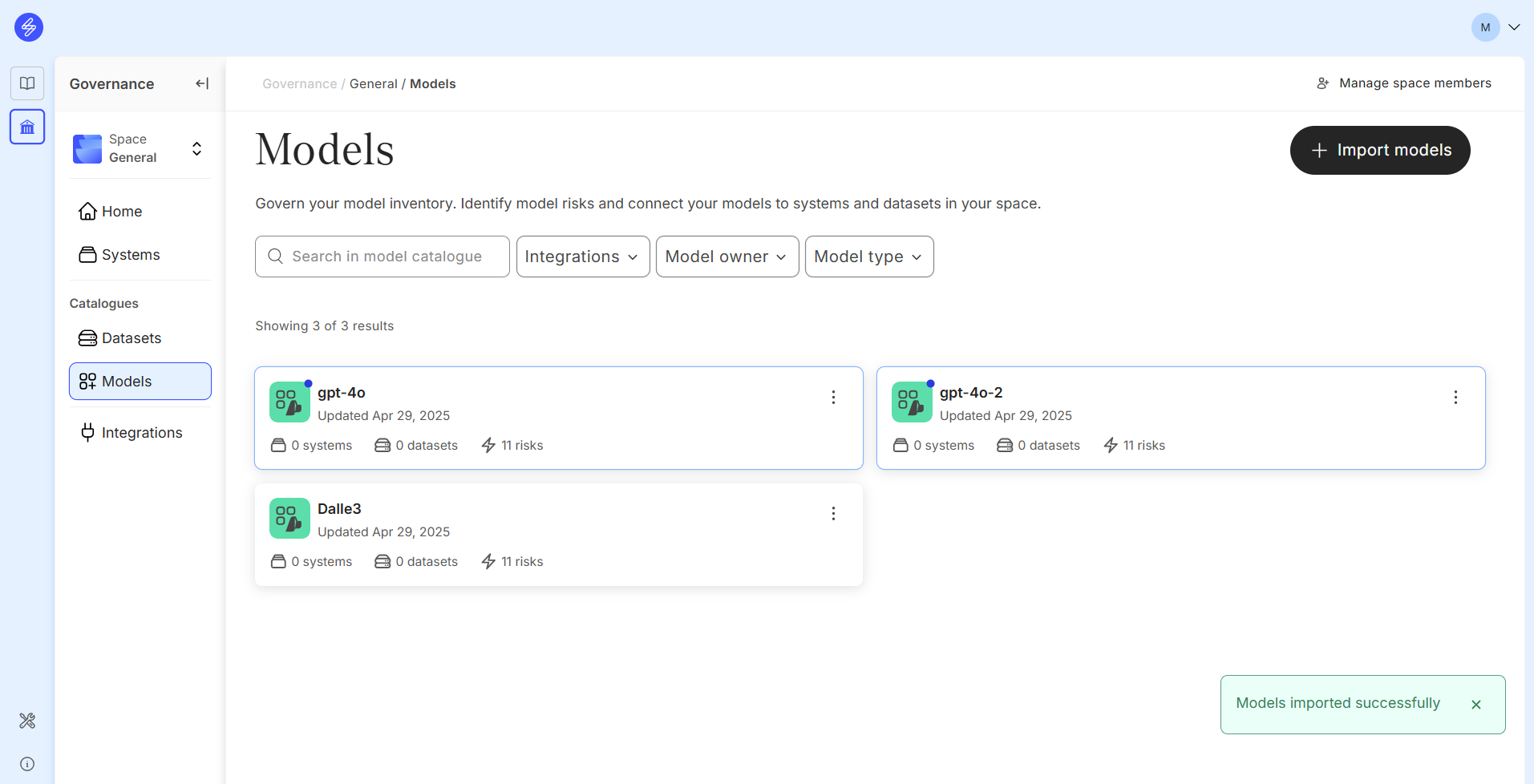
Imported models will be visible in the Model Catalogue.
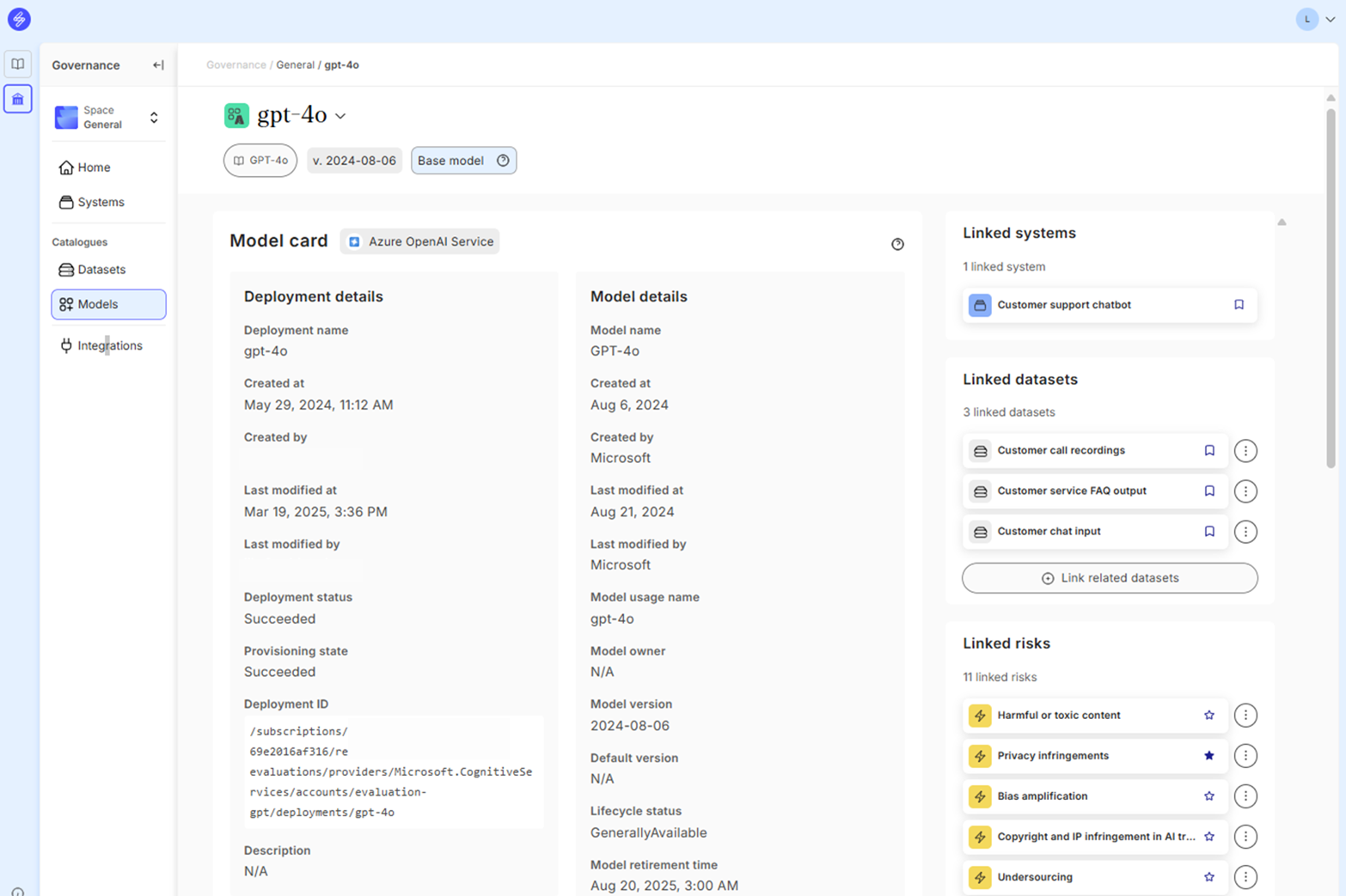
Step 2. View Model Card
View the deployment and model details in the Model Card. This information is integrated from Azure directly.
Step 3. Link datasets
Link datasets that has been used to train, validate or test the model deployment.
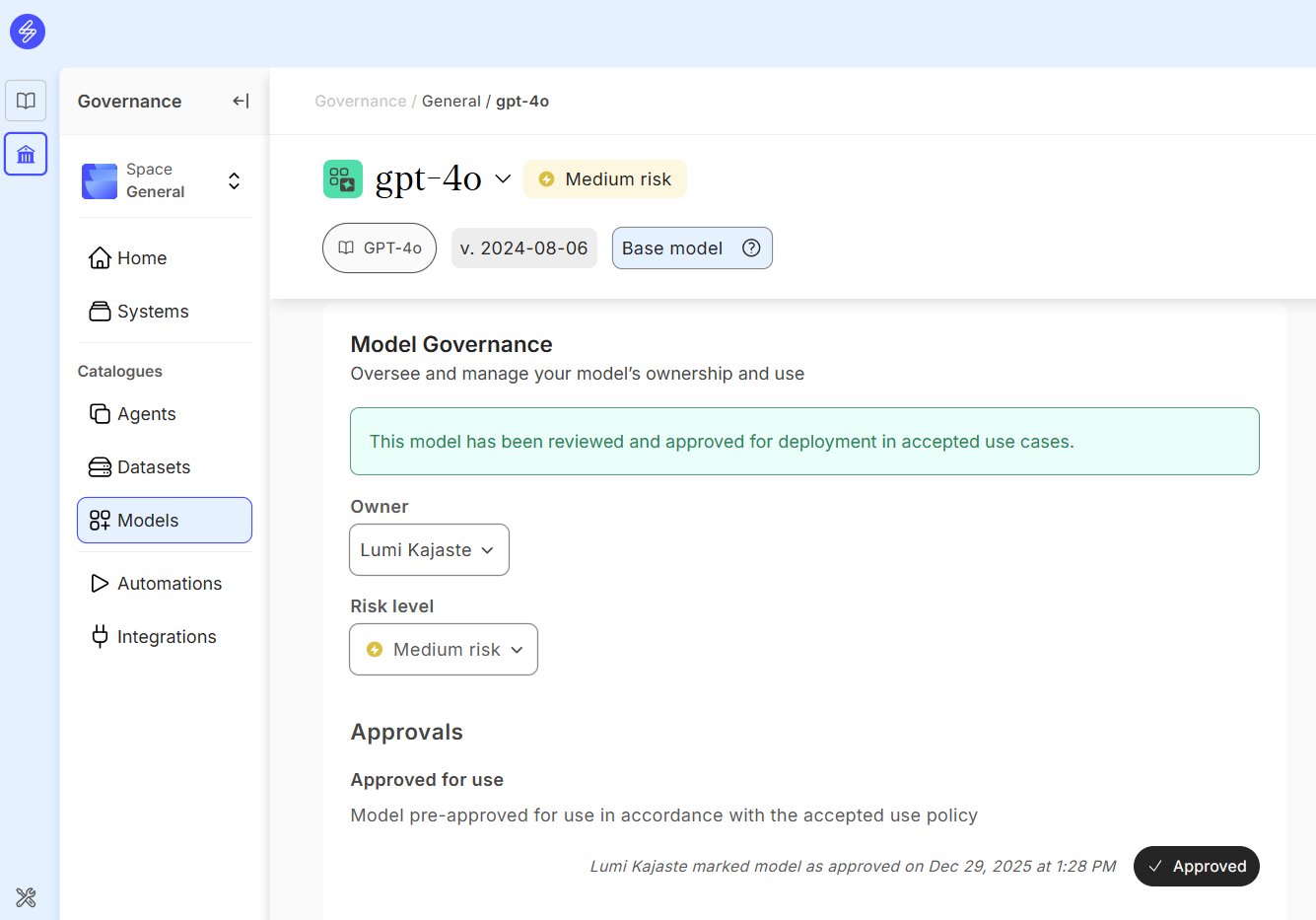
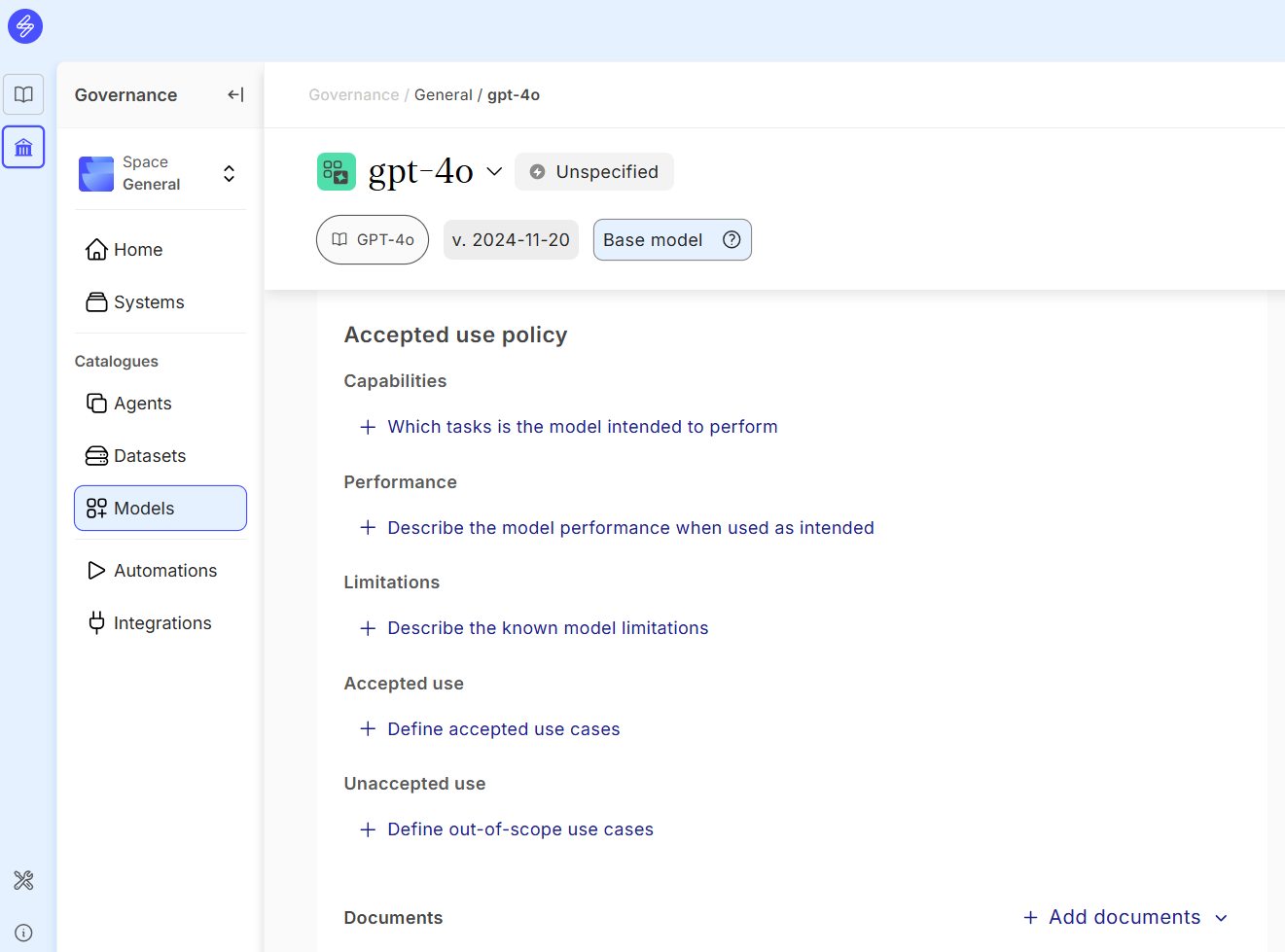
Step 4. Govern model
Oversee and manage your model on the Model Governance section including
-
Model owner
-
Model risk level that can be inherited to AI system using automated workflow
-
Approval status
-
Capabilities, performance and limitations
-
Accepted and unaccepted use
-
Documents
Step 5. Link risks
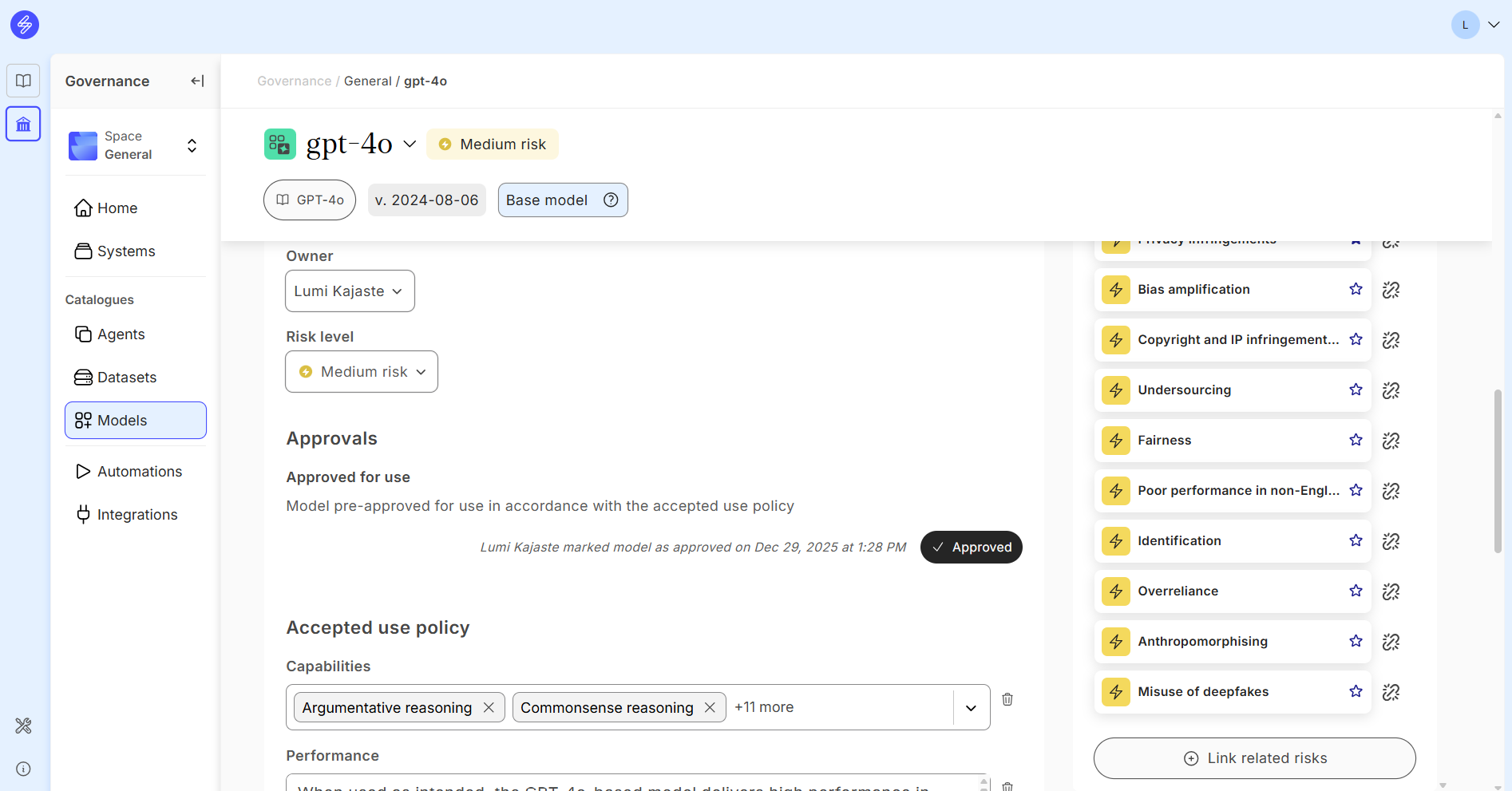
If the model is built on an existing model in the Saidot Model Library, model specific provider reported risks will be automatically connected to the model in the Model Catalogue. Model owner can add additional risks, for example related to model performance and use. These risks will be linked automatically to all systems using the model.
Step 6. Link model to System
Link the model to the AI system and describe the tasks. This will enable you to generate relevant evaluation plans for the model deployment.
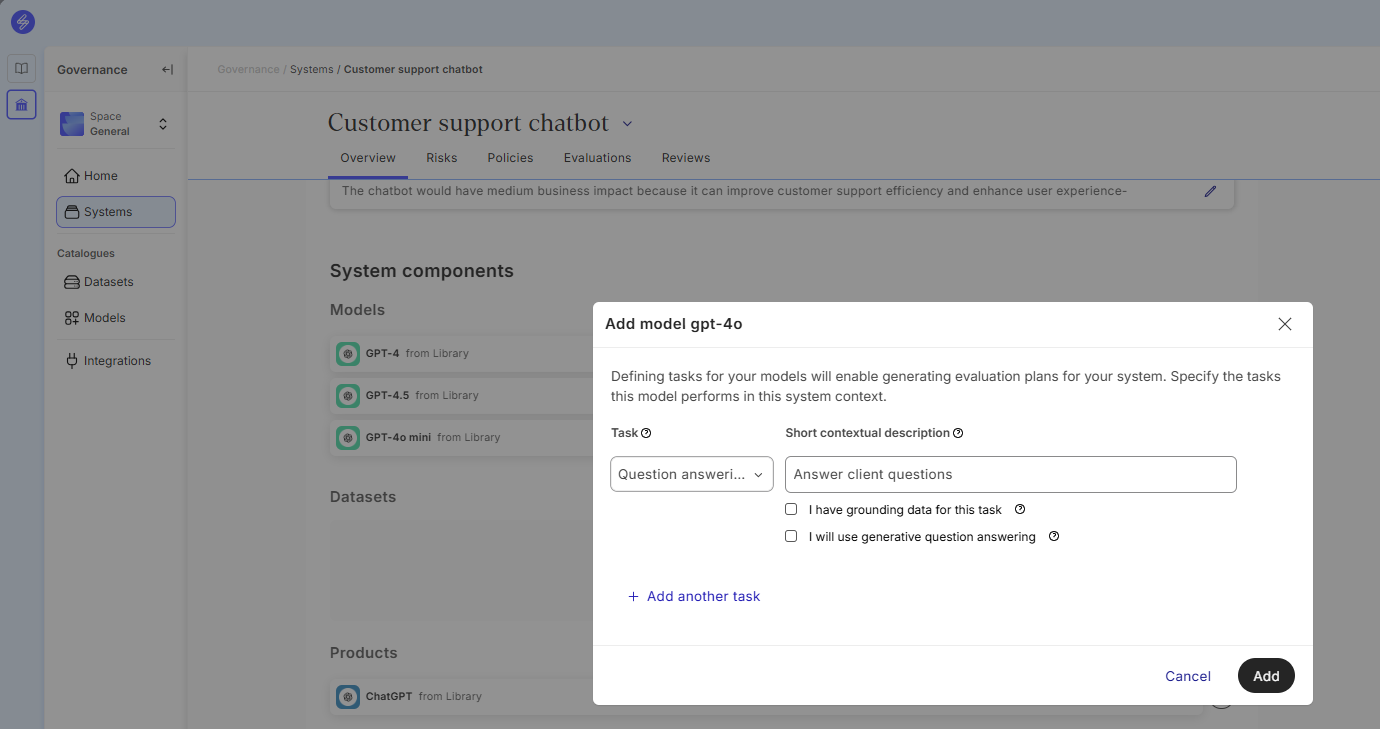
If datasets have not been linked before to the system components, datasets will be automatically linked from model to the system.
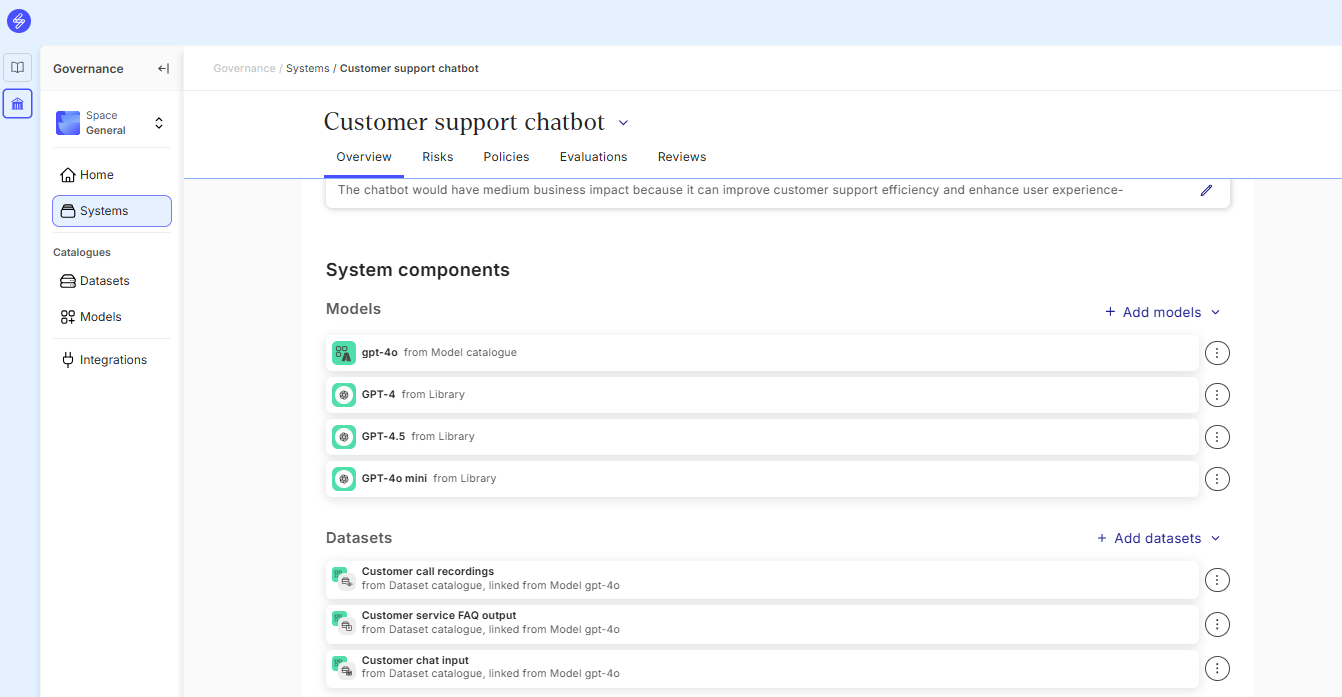
Step 7. Validate risk source
After linking the model from Model Catalogue to the system components, the model can be added as a risk source. Ensure that all model and context specific risks are identified and linked to the model correctly.
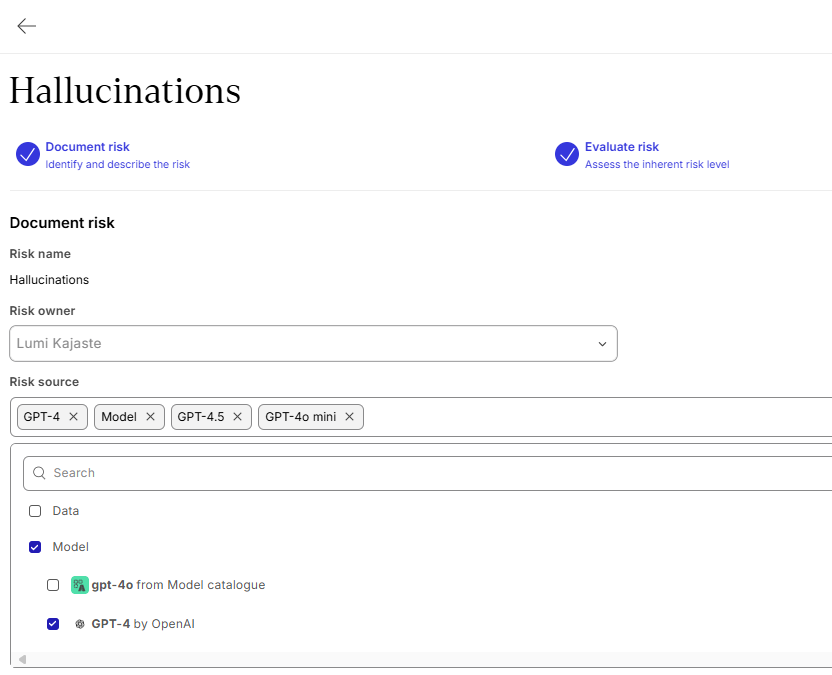
Soon, the risks identified for the model will be automatically added to the AI system.