
Configuring user account settings
Users can configure all settings related to their account by clicking on the arrow next to their icon on the top right corner of the user interface. Note that these settings are only configurable on the user interface and not accessible via API or MCP. The dropdown offers access to your Account settings, to your Notification settings, and to Shared notes. Click on Account settings to configure your profile and access your connections.
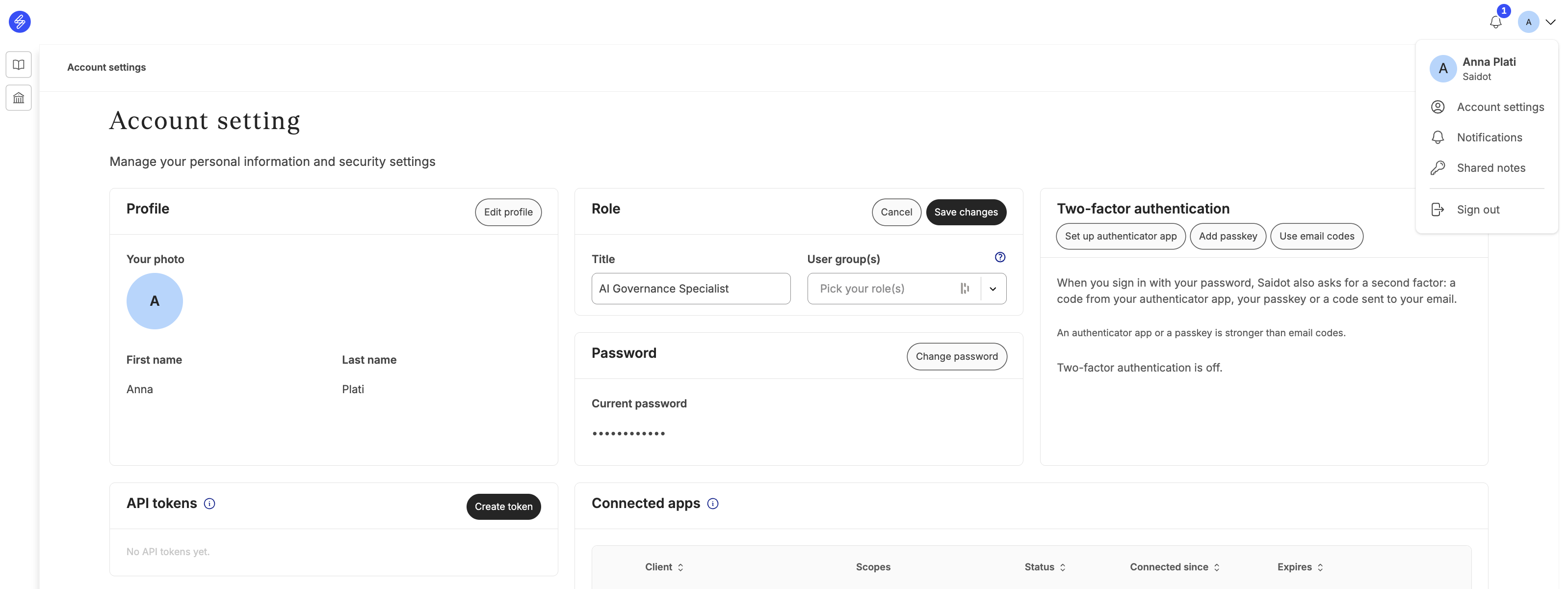
Account Settings
Your Account settings contain your profile information, access information, and your personal API tokens and connected apps.
Managing your profile and access
Editing your profile or role affects how your profile is displayed to other users: add a photo and title to let other users recognise you. These settings do not affect the platform’s functionalities and are only used for visibility. User groups, on the other hand, may be used as task assignees and as mentions in comments. Make sure you have selected the user group your role belongs to.
Two-factor authentication (2FA) can be set up using an authenticator app, a passkey or using email codes. Set those up for increased security by clicking on one of the three options displayed on your Account settings. You will be provided with recovery codes which you must store securely on your device. Once 2FA is enabled, the type of authentication enabled will be displayed on your Account settings, which you will be allowed to remove at any time.
Note that 2FA may be enforced by your organisation, if an Admin has toggled the enforcement in the Admin settings, in which case you will have to set it up.
Managing API tokens and Connected apps
Your Account settings provide access to your personal API tokens and Connected apps. API tokens and Connected apps are managed centrally by Admins under the Admin settings. Learn more about the central management of tokens and apps by reading Working with Saidot APIs.
Create or revoke API tokens under your settings' API tokens section. Note that an automatic expiration date may be enforced in the Admin settings, in which case your tokens will expire automatically after a given number of days.
You will have an overview of your Connected apps under the eponymous section of your settings. Revoke access to any of your Connected apps by clicking on the three dots next to the connection.
Notifications
Saidot sends notifications for relevant actions such as mentions, comments, task assignments, reviews, ownership changes, team and space changes, lifecycle moves and due dates.
Notifications appear in the app and can also be sent by email. Each email links straight to the item it concerns. Users choose which notification types arrive in the app and which arrive by email.
Use and configure notifications
The notification bell in the user interface
The bell in the top bar collects all notifications. The number on the bell shows the unread count, up to 99+. Selecting a notification opens the item it concerns.
The bell panel is titled Notifications and contains:
-
An Only unread toggle that hides notifications already seen
-
Mark all as read
-
A link to Notification settings
Each notification can be marked as read or unread. Mention and comment notifications also offer a reply. When your list is empty, it will read "You’re all caught up" or "No notifications yet".
Notification settings
Notification settings opens from the link in the bell panel or from Manage notification settings in any notification email. The page lists nine groups of notification types:
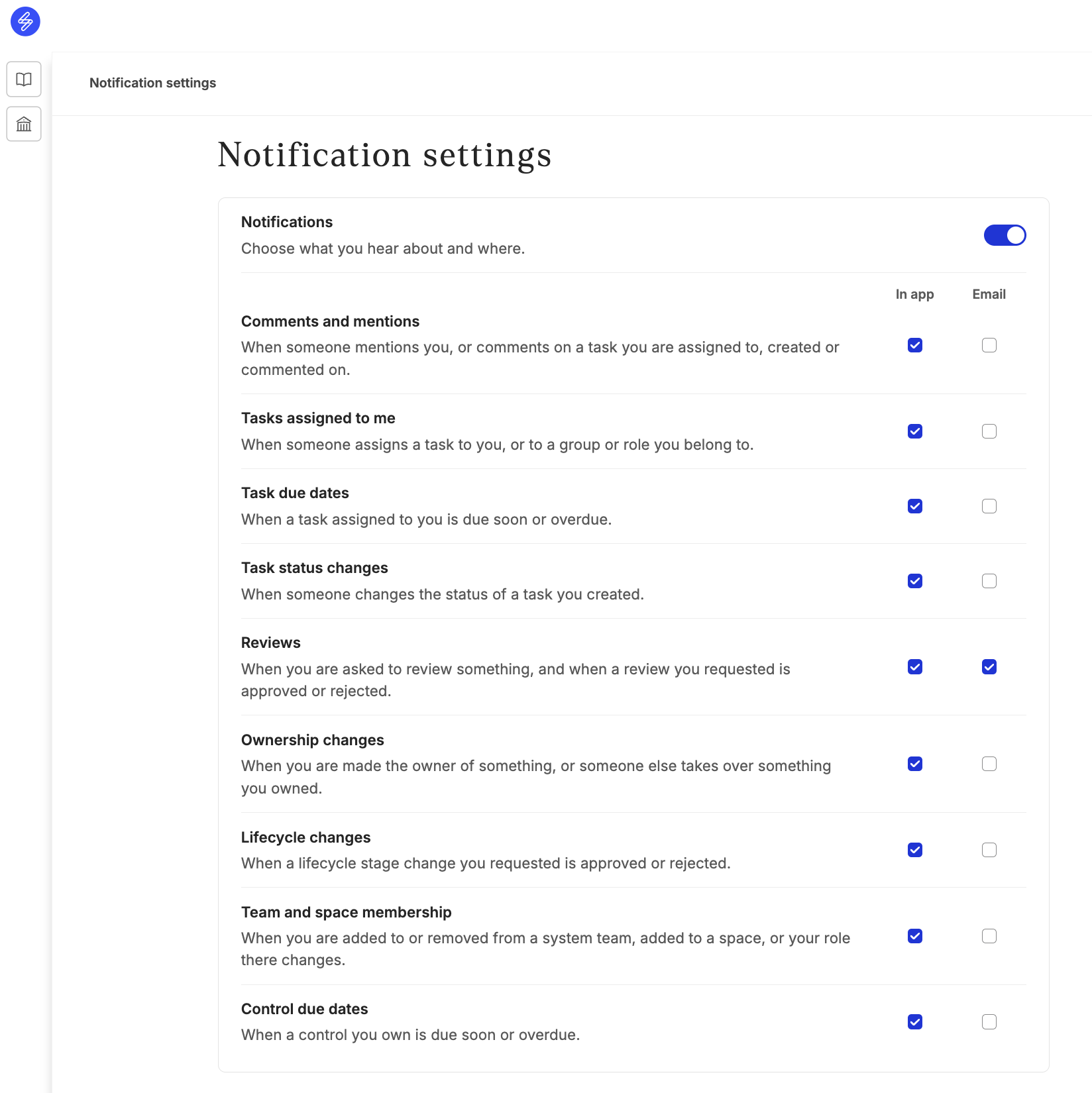
To choose which notifications arrive:
-
Open Notification settings.
-
For each group, select In app, Email or both. Leaving both unselected turns that group off.
-
Use Enable notifications to turn all notifications on or off at once.
By default, Reviews notifications arrive by email, though they may be turned off. All other groups arrive in the app only until email is turned on for them.
How it works and when notifications are sent
A notification is created when an action concerns a person. Saidot never notifies the person who performed the action.
-
An action takes place, such as a comment, a task assignment, a review request, an ownership change or an approaching due date.
-
The person concerned receives a notification in-app, the unread count on the bell rises and the notification appears with a link to the item.
-
If email is selected for that type, one email is sent per notification. The Open in Saidot button opens the item.
Two kinds of mention
-
A person: mentioning a colleague notifies that person with "mentioned you".
-
A group or role: mentioning a group, a system team role or space managers notifies every member of that group or role who is also a member of the space, for example "mentioned System owners".
Notification types
Saidot sends 20 notification types belonging to nine settings groups. Every type can be sent in the app and by email. Email notification can only be turned on if in-app notification is also turned on.
|
Settings group |
Notification text |
Who gets it |
Created when |
Shown in the bell |
Email by default |
|---|---|---|---|---|---|
|
Comments and mentions |
{Name} mentioned you / mentioned {role} |
The person, or members of the group or role |
A comment mentions them. Editing a comment notifies only newly mentioned people |
90 days |
No |
|
Comments and mentions |
{Name} commented on a task you're assigned to / you created / you commented on |
Task assignees, task creator and earlier commenters |
A new comment is posted. Edits do not trigger it |
90 days |
No |
|
Tasks assigned to me |
{Name} assigned you a task / assigned you {n} tasks |
The new direct assignee |
A task is assigned to them. A bulk edit sends one notification |
While they are still assigned |
No |
|
Tasks assigned to me |
{Name} assigned a task to {group or role} |
Members of the group or holders of the role |
A task is assigned to a group or role |
While they are still reached through the group or role |
No |
|
Task status changes |
{Name} changed the status of a task you created |
The task creator |
The status of the task changes |
While the task still has that status |
No |
|
Task due dates |
Your task is due tomorrow / due today |
Direct assignees |
An open task is due tomorrow or today |
While the task is open and not yet overdue |
No |
|
Task due dates |
Your task is overdue |
Direct assignees |
The due day has passed and the task is open |
While the task is still open |
No |
|
Control due dates |
A control you own is due tomorrow / due today |
The control owner |
An open control is due tomorrow or today |
While the control is open and not yet overdue |
No |
|
Control due dates |
A control you own is overdue |
The control owner |
The due day has passed and the control is open |
While the control is still open |
No |
|
Ownership changes |
{Name} made you owner of {item} |
The new owner of a risk, control, policy, model, agent, tool or dataset |
Someone makes them owner |
While they still own it |
No |
|
Ownership changes |
{Name} took over your ownership of {item} / made someone else owner |
The previous owner |
Ownership moves to someone else |
While they still do not own it |
No |
|
Reviews |
{Name} requested your review / assigned you a review / requested a lifecycle stage change |
Eligible reviewers of a control, risk, policy or lifecycle stage change, and the named reviewer of a system review |
A review is requested, or approval tasks are reassigned to them |
While the review is pending and they may still decide |
Yes |
|
Reviews |
{Name} approved / rejected your review request |
The requester |
A control, risk or policy review is decided |
90 days |
Yes |
|
Lifecycle changes |
{Name} approved your lifecycle stage change / rejected your lifecycle stage change to {stage} |
The requester |
A reviewer decides a stage change request |
While they can open the system |
No |
|
Lifecycle changes |
{System} moved to {stage} automatically: its requirements are met. |
System owner and team |
A system moves to the next stage on its own |
While they can open the system |
No |
|
Team and space membership |
{Name} added you to a system team |
The added person |
Someone adds them to a system team |
While they still hold that role |
No |
|
Team and space membership |
{Name} changed your role on a system team |
The team member |
Someone changes their team role |
While they still hold the new role |
No |
|
Team and space membership |
{Name} removed you from a system team |
The removed person |
Someone removes them from a system team |
While they are still off the team |
No |
|
Team and space membership |
{Name} added you to a space |
The added person |
Someone adds them to a space other than the default space |
While they are still a member |
No |
|
Team and space membership |
{Name} made you space manager |
The new manager |
Someone makes them manager of a space |
While they still manage it |
No |
Notification emails
Each email covers one notification. The email body contains the item name and its location with an Open in Saidot button. Open in Saidot opens the item the notification concerns, such as the task, control, risk, policy or system. If the reader can no longer open the item, the button opens Saidot instead.
Good to know
-
Space members only. Only members of a task's space can comment or be mentioned. A mention of a group or role reaches only the members who are in that space.
-
Edited comments. Editing a comment notifies only newly mentioned people and never sends a "commented" notification. Users can edit and delete only their own comments.
-
Bulk changes. One save that assigns or re-owns many items sends each person one notification and one email that lists those items.
-
Disappearing notifications. A notification is no longer visible under the bell when it no longer applies, for example when the person is unassigned, the review is decided or the due task is completed.
-
Retention. Notifications are kept for 90 days, read or not. They should not be used as an audit record.
-
One email per notification. There are no digest emails: each notification selected for email is its own email. To stop receiving emails, go to your notification settings.
Shared notes
Under Shared notes, you can create encrypted sharable links to share sensitive information such as API keys or passwords. The note is encrypted directly on your device.
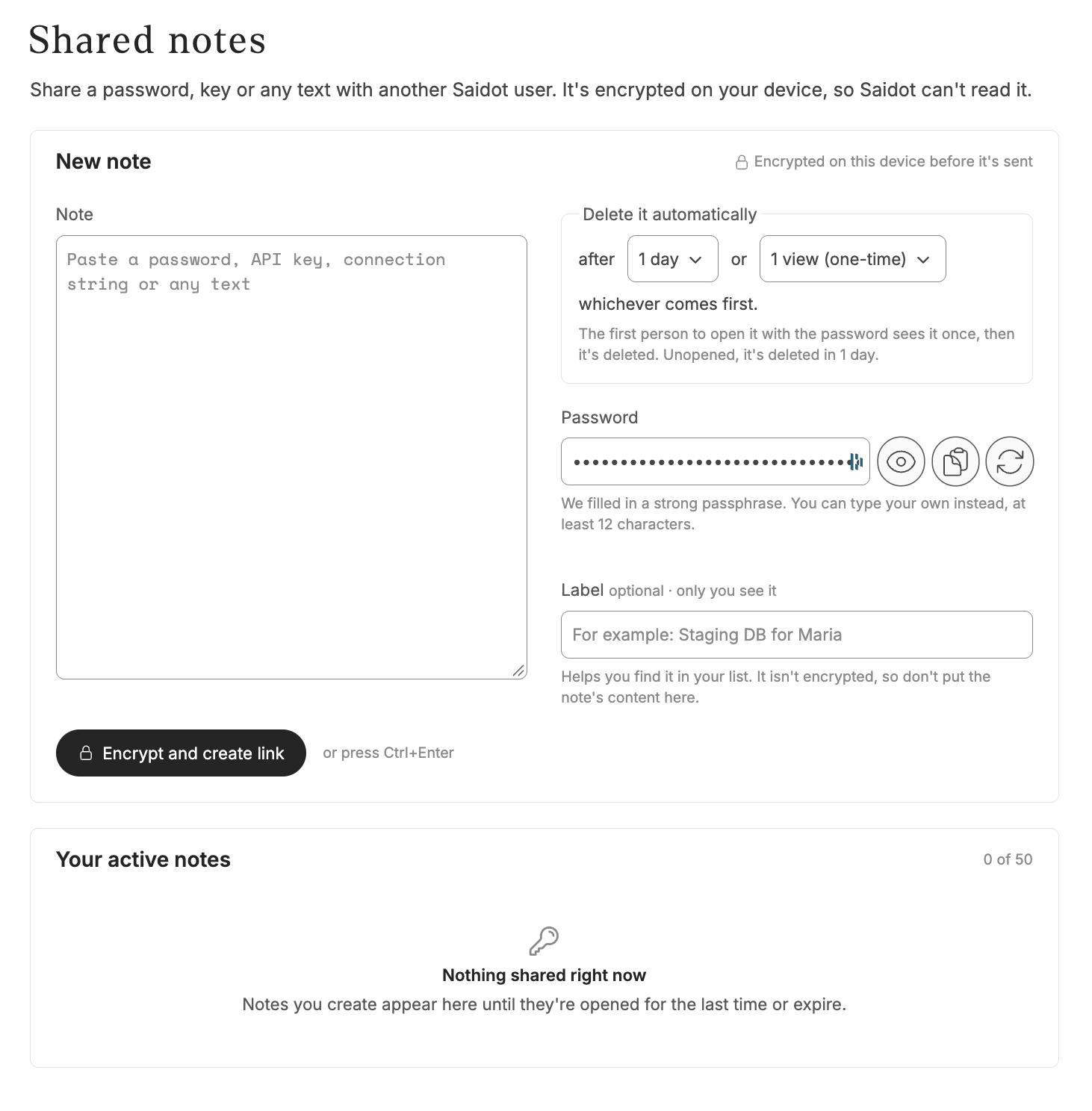
Type your note, set the deletion conditions and click on Encrypt and create link. You will be given a link to the note and a password to access the link. Copy them and send them through different channels for increased security. The note will be deleted based on the conditions you have set or you can delete it manually by clicking Delete next to the note found under Your active notes.